Beacon Management
This guide will consist of three parts.
- How to Configure a Beacon
- How to Test a Beacon
- How to Monitor Beacon Battery Level
How to Configure a Beacon
There are two steps involved in configuring a Beacon:
- Set up the Beacon on StaffSync and obtain a Major ID (HEX) and Minor ID (HEX).
- Configure the Beacon using the app iBKS Config Tool.
Beacon Setup on StaffSync
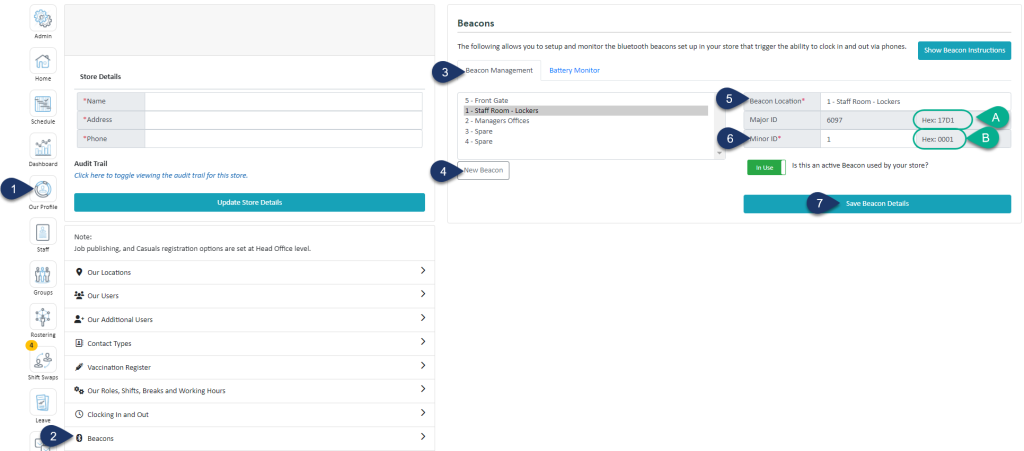
Shadow the organisation for which you wish to set up the beacon.
- Select Our Profile.
- Select Beacons.
- Select Beacon Management.
- Select New Beacon.
- Enter the name of the beacon (it's recommended to use the location as the name).
- Enter a unique number for this beacon (1 - 15).
- Select Save Beacon Details
A. The Major ID (HEX) is generated. This ID is unique to the company and ensures that only employees within this company can use the beacon.
B. The Minor ID (HEX) is generated. This ID is unique to the individual beacon.
You will need both the Major and Minor ID (HEX) for the next steps.
Configuring the Beacon Using the iBKS Config Tool
You will need the iBKS Config Tool app for this step. It is available on both the Apple App Store and Google Play Store.
Tip: We recommend completing the following steps away from any other active beacons.
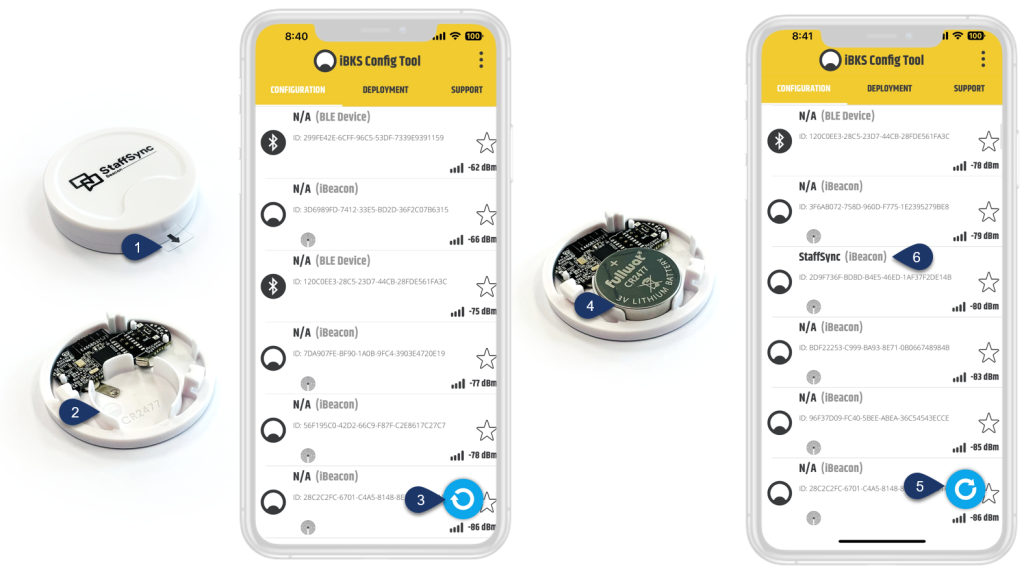
- Remove the plastic tab from the beacon.
- Twist and open the cap to remove the battery from the beacon.
- This button starts and stops a search for nearby devices. If you don’t see a live list being loaded with nearby devices, then press the Sync button on the iBKS Config Tool to start a search.
- Insert the battery back into the beacon as shown in the image (battery name facing up).
Your beacon will now be discoverable on the iBKS Config Tool. - You will see a list of names appear in the app. Once you see StaffSync, click the Sync button again to stop the search.
(If you can't see the name within the first 30 seconds, repeat steps 2–4.) - Select StaffSync. (You may need to scroll down to find it again.)
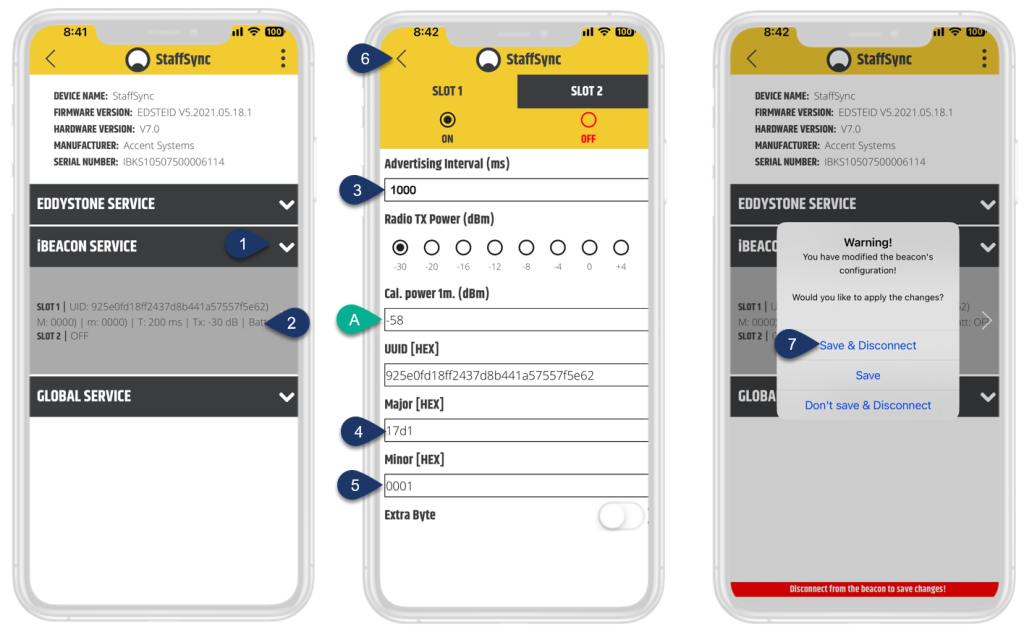
- Select iBeacon Services to expand the dropdown.
- Select the dropdown area with text.
- Enter 1000 for the Advertising Interval
- Enter the four-digit Major ID (HEX) from Step 1.
- Enter the four-digit Minor ID (HEX) from Step 2.
A. Cal.power1m set at -58 - This sets the beacon's range to 1–2 meters. Altering this value will adjust the beacon's range. - Click the back arrow twice
- Select Save & Disconnect
How to Test a Beacon
To perform a beacon test on the StaffSync app, you need to:
- Be logged in as a staff member.
- Have Bluetooth turned on.
- Grant location permissions to the StaffSync app.
You do not need to be a staff member at the company to perform the test. However, you will need to be a staff member at the company to use the beacon for clocking in and out.
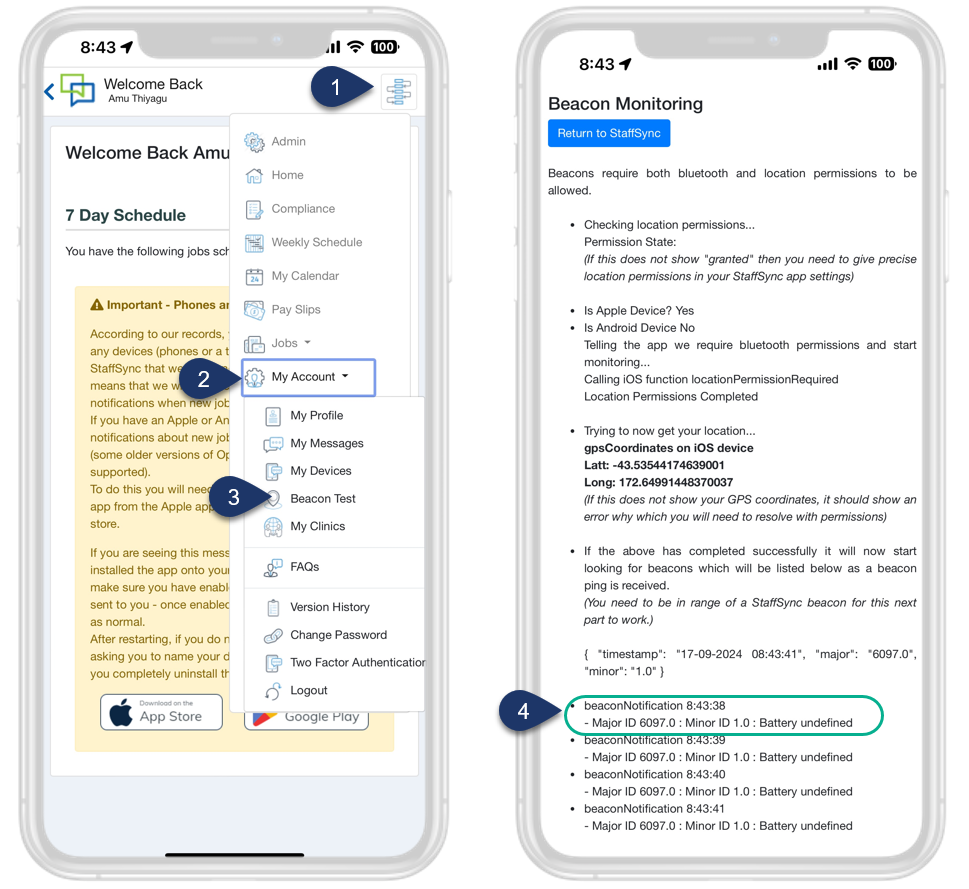
- Select the Menu.
- Select Account.
- Select Beacon Test.
- If you have successfully set up the beacon, you will see the beacon's Major and Minor IDs displayed here. Please note that the IDs shown are in decimal format, not HEX.
How to Monitor Beacon Battery Levels
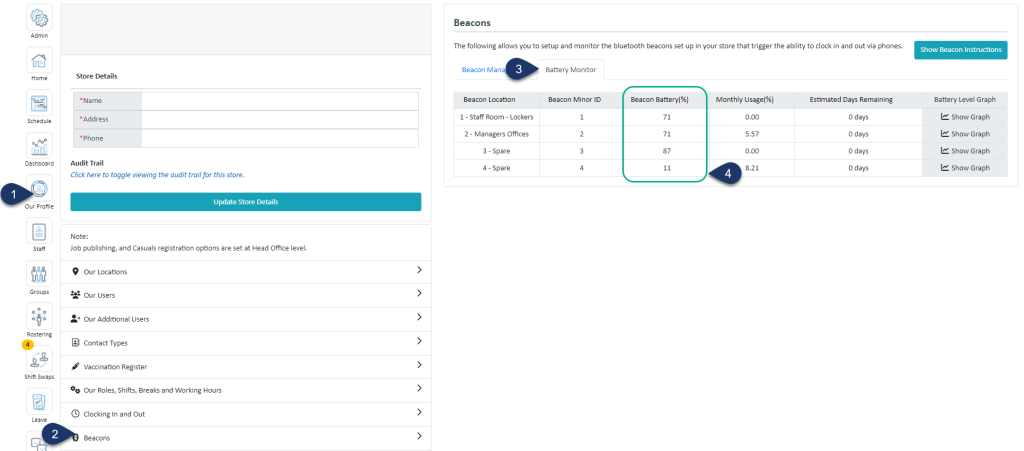
- Select Our Profile.
- Select Beacons.
- Select Battery Monitor.
- Here, you will find an approximation of the battery level. We recommend replacing the battery once the level drops below 10%.