
Simplifi Work App : Employee Self Service
Install Simplifi Work
Download the Simplifi Work App Using One of the Methods Below:
If you are viewing this on your phone:
Click the links below to download the app:
If you're not viewing this on your phone:
Open the camera on your phone and scan the QR code below. Click the link that appears on your screen.

Setting a Secure Password
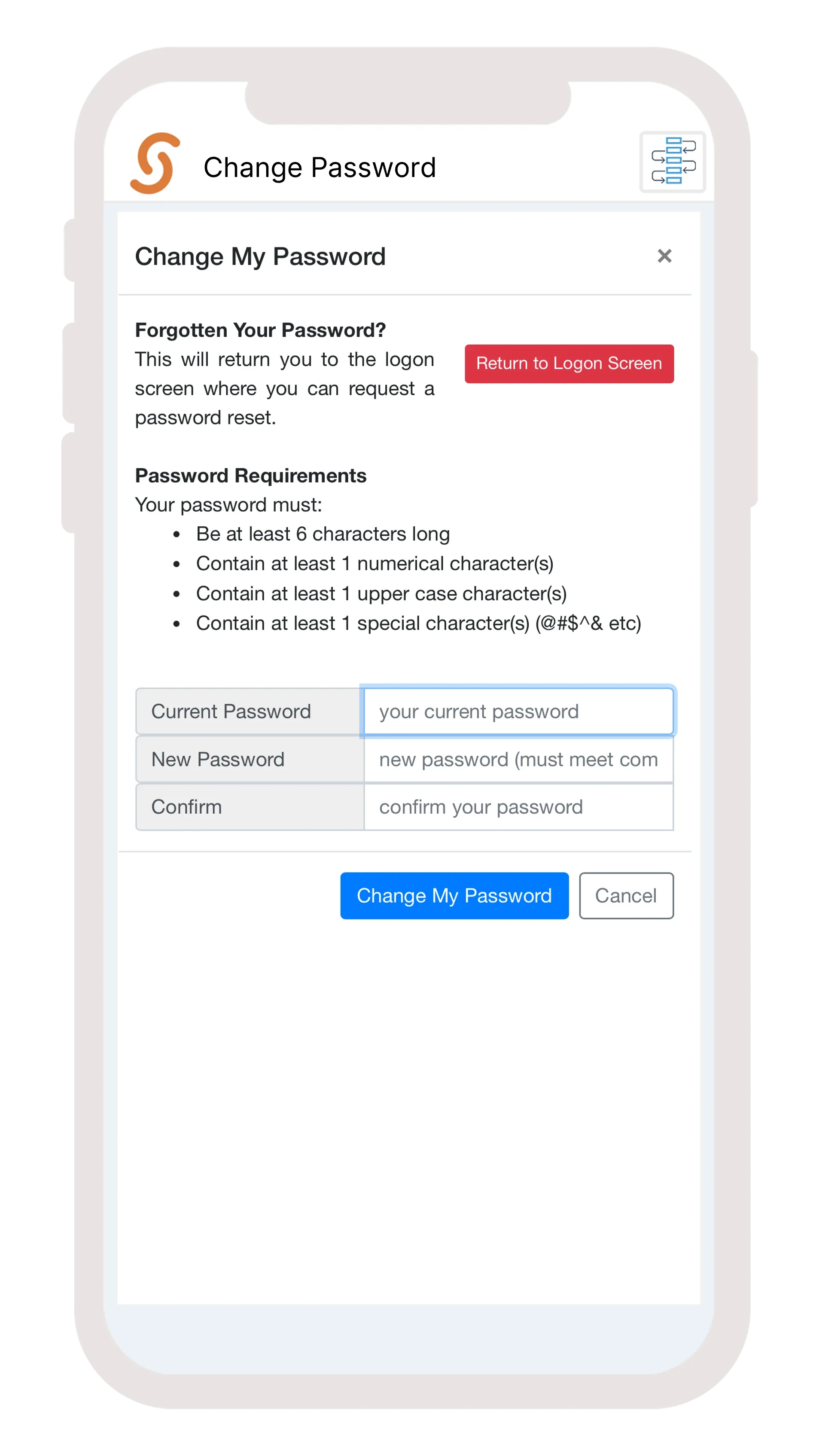
We recommend changing your password to a more secure one when you first log in to Simplifi.
Select Menu, then My Account, and choose Change Password.

Complete the form to update your password.
Manage Leave
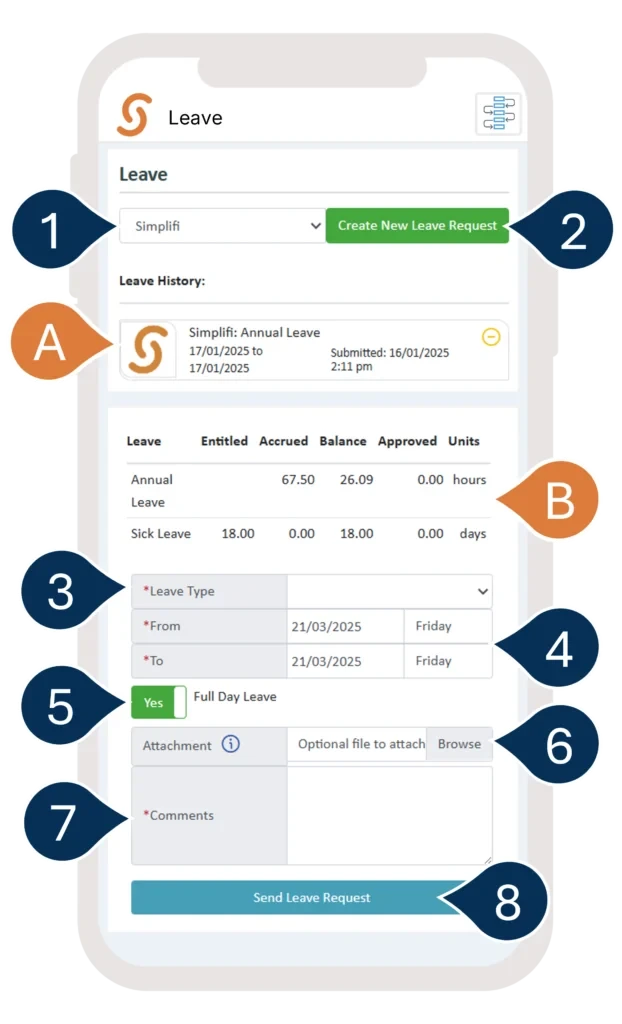
To submit a leave request, follow these simple steps:
Select the Menu and choose Leave Request.

- A. Here, you’ll see a list of your recent leave requests and their status. You can click on any pending requests to make changes or cancel them.
- If you work at multiple locations, select the location you wish to send your request to.
- Select Create New Leave Request.
- B. Here, you can also check your Leave Balances.
- Enter the Leave Type
- Enter the Date Range.
- If you're applying for a full day off, set the toggle to YES. If you're applying for part of the day, set the toggle to NO and enter the time range.
- Attach any Supporting Documents (optional).
- Add any Comments (if needed).
- Select Send Leave Request to submit your request.
Access your Payslips
To view your payslips, follow these steps:
Click on Menu and then select Payslips.

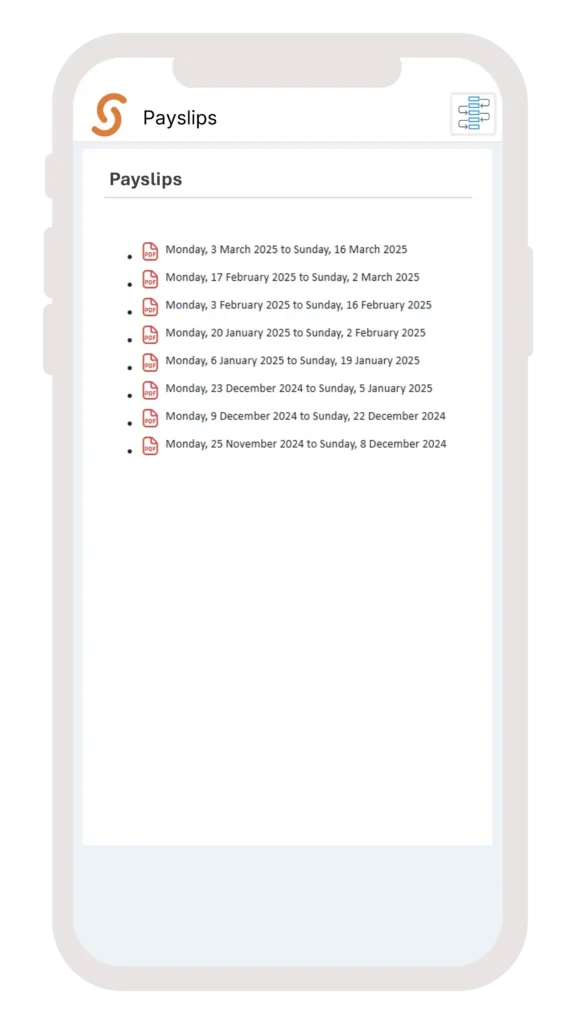
Note: This feature is only available to companies that have enabled it through Simplifi, and it requires the payroll provider to support this functionality.
Manage Calendar
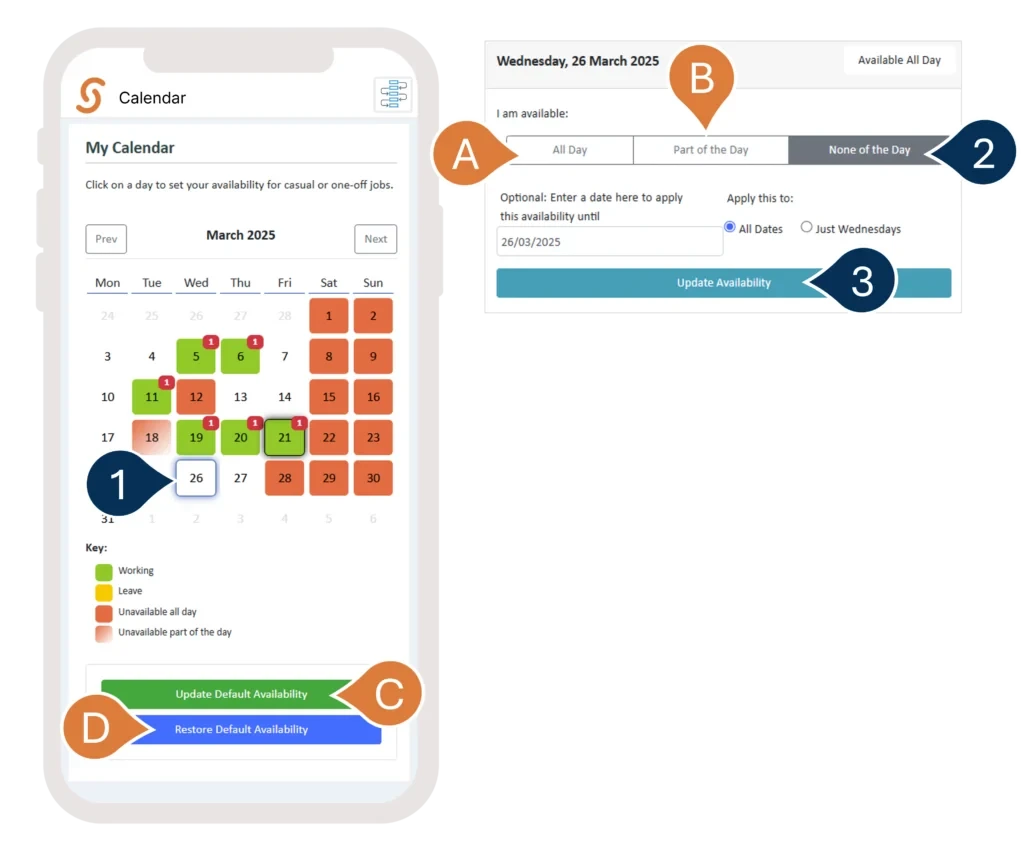
Simplifi lets you manage your calendar easily. By default, all days are set as available for work. However, you can mark yourself as unavailable or partially unavailable.
Steps to manage your availability:
Open the Menu and select My Calendar.

- Choose the date you want to mark.
- Select None of the Day to mark yourself as unavailable.
A. If you’ve already marked yourself as unavailable before, you can select Available to change your status back.
B. You can also choose to be available for just part of the day. - Select Update Availability to save your changes.
C. To set a default availability for specific days of the week (e.g., always unavailable or always available on certain days), choose the option for that.
D. To clear any one-off markings and reset your calendar to its default availability, click this option.
Apply for Additional Jobs/Shifts
You’ll receive a notification when your organisation posts a new job or shift. It will appear on your home screen under New Jobs, or you can find it by clicking Menu, then Jobs, and selecting New Jobs.

Click on the job to view the details and choose one of the options.
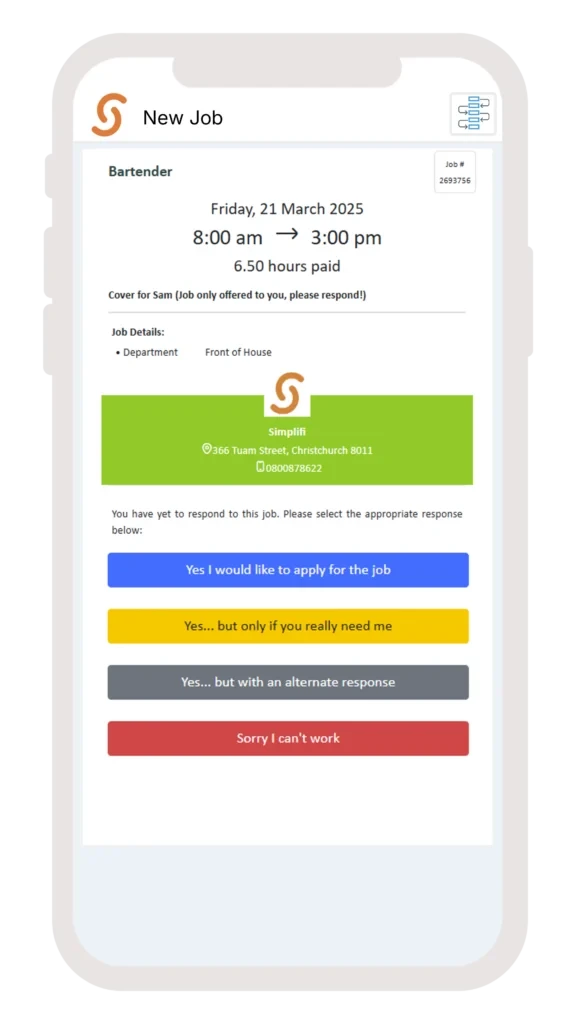
Note: Depending on your organisation's settings, you may only see 3 options.
If you select 'Yes... But with an alternative response', type your alternative response and select Send.
You’ll be notified if your request is successful.
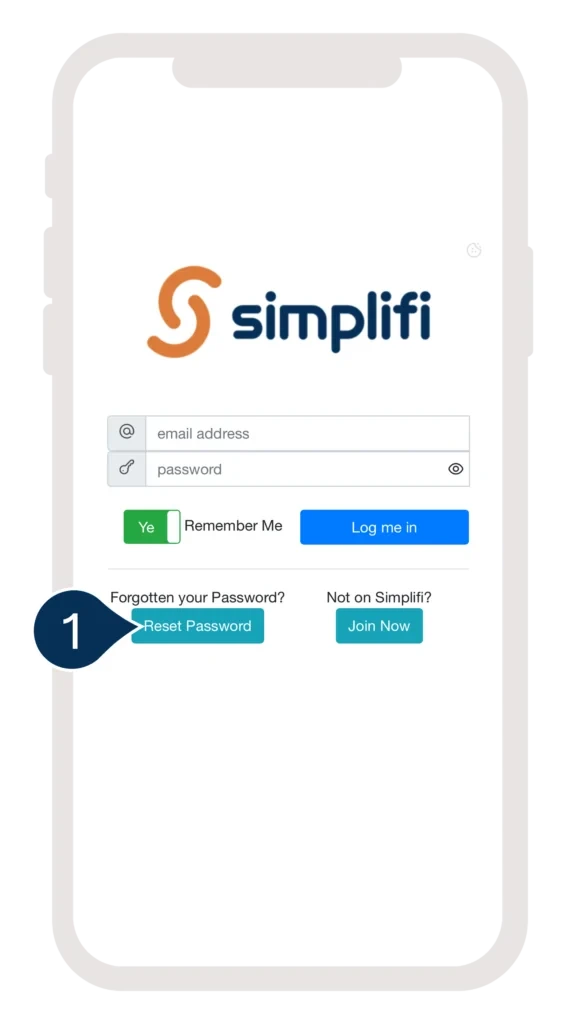
Forgot Your Password?
If you've forgotten your password, you can easily reset it from the login page. Simply click on "Reset Password" and follow the instructions.
Access Your Simplifi Account via Web Browser
Open any web browser (we recommend using Chrome).
Go to the following URL: https://apps.ghuwvsgnv3.wpdns.site/
Enter your credentials to log in.
This has been curated for Kindergarten Associations: Work Force Management