
Release Notes - April 2025
We would like to inform you that Simplifi will be conducting a software release on Wednesday, April 30, 2025, at 10:15 PM.
The items included in this release have been added to our Test system for your review and testing.
To access the Simplifi Test system, please visit https://test.ghuwvsgnv3.wpdns.site and log in using your current credentials.
As Simplifi is a highly configurable system, please note that these are general release notes, and not all items may be applicable to your organisation.
Should you wish to discuss any of the following items in more detail or gain a deeper understanding of how this release will impact your organisation and its users, please do not hesitate to reach out to us on support@ghuwvsgnv3.wpdns.site.
Enhanced Staff View in Rostering Module
We’ve introduced key enhancements to the Staff View within the Rostering Module. While this view has always existed, the latest updates provide a clearer picture of what an individual team member is doing across the organisation—helping you plan rosters more effectively and ensure minimum employment obligations, such as contracted hours, are met.
How to Use the Updated Staff View:
- Open the Rostering Module.
- Change the View to Staff.
- Select one or more Departments, or view All Departments.
- Choose to display the roster in either Weekly or Fortnightly view. (A fortnightly view is helpful where minimum hour requirements are achieved over two weeks—e.g. fewer hours in Week 1, made up by extra hours in Week 2.)
- Use the available filters to view:
- All Staff
- All Staff with Mismatch hours (not matching their contracted hours)
- Staff who are Over Rostered
- Staff who are Under Rostered
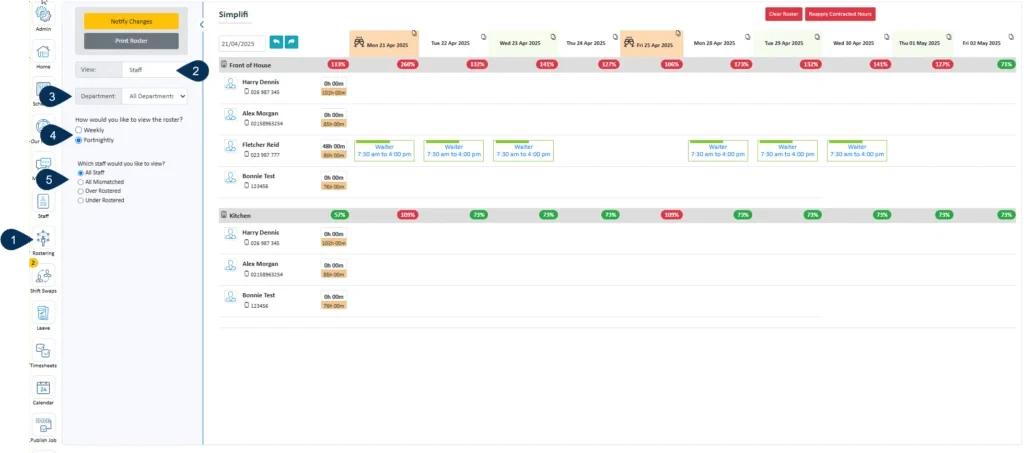
How Contracted Hours Are Determined:
- If a staff member has contracted shifts or work patterns defined in their profile, the system calculates their total weekly hours automatically.
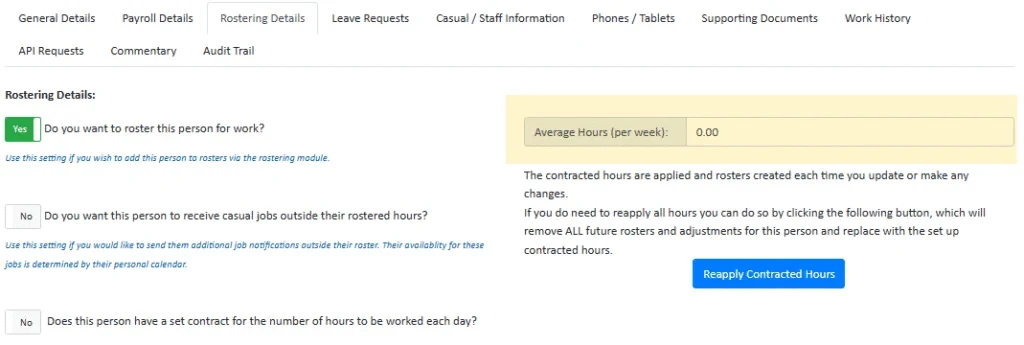
- If not, use the Average hours (per week) field to manually define their expected hours for accurate comparison.
To Set Average Hours (per week):
- Open the relevant Staff Member’s Profile.
- Navigate to Rostering Details.
- Enter a value in the Average hours (per week) field.
These improvements provide more visibility and control, ensuring your rosters meet contractual requirements while supporting fair and efficient workforce planning.
Leave Endorsement
We’re excited to introduce a new Leave Endorsement feature—an intermediate approval step in the leave request process. This enables organisations to incorporate a site-level endorsement before final approval is granted.
How It Works:
The Leave Endorsement functionality must be configured by Simplifi. If you’re interested in learning more, or would like us to enable this in your test environment, please get in touch with our support team.
Once configured, a new endorsement restriction option will be available in User Permissions.
Example Workflow: Site Endorsement Before Office Approval
In this scenario, leave requests submitted by staff at a site must first be endorsed by a Site Manager before being approved by an Office Manager.
- Set the staff member’s profile so that leave requests are directed to the Site Manager.
- Under the Site Manager’s user permissions, restrict their access to endorse leave only.
- Specify who has final approval rights (e.g. the Office Manager).
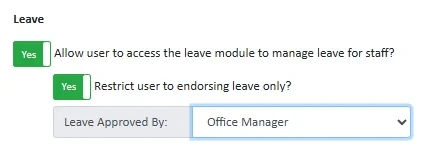
Site Manager (Endorser)
The Site Manager will have access to the Leave Module and can view leave requests assigned to them. When reviewing a request, they’ll have the ability to leave a comment for the approver and choose to either endorse or decline endorsement of the leave. However, Site Managers will not be able to action (approve or decline) the leave themselves. Their role is strictly limited to endorsing or providing feedback as part of the approval workflow.
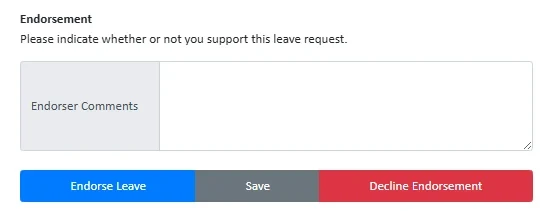
Office Manager (Approver)
The Office Manager retains full access to the Leave Module, just as before, with the ability to approve or decline leave requests. In this updated workflow, additional icons are displayed in the leave summary to indicate whether a request has been endorsed.

While the endorsement provides valuable input, the Office Manager can choose to approve or decline the leave regardless of its endorsement status. Whether they wait for an endorsement before making a decision is entirely up to internal business processes—the system does not enforce this as a requirement.
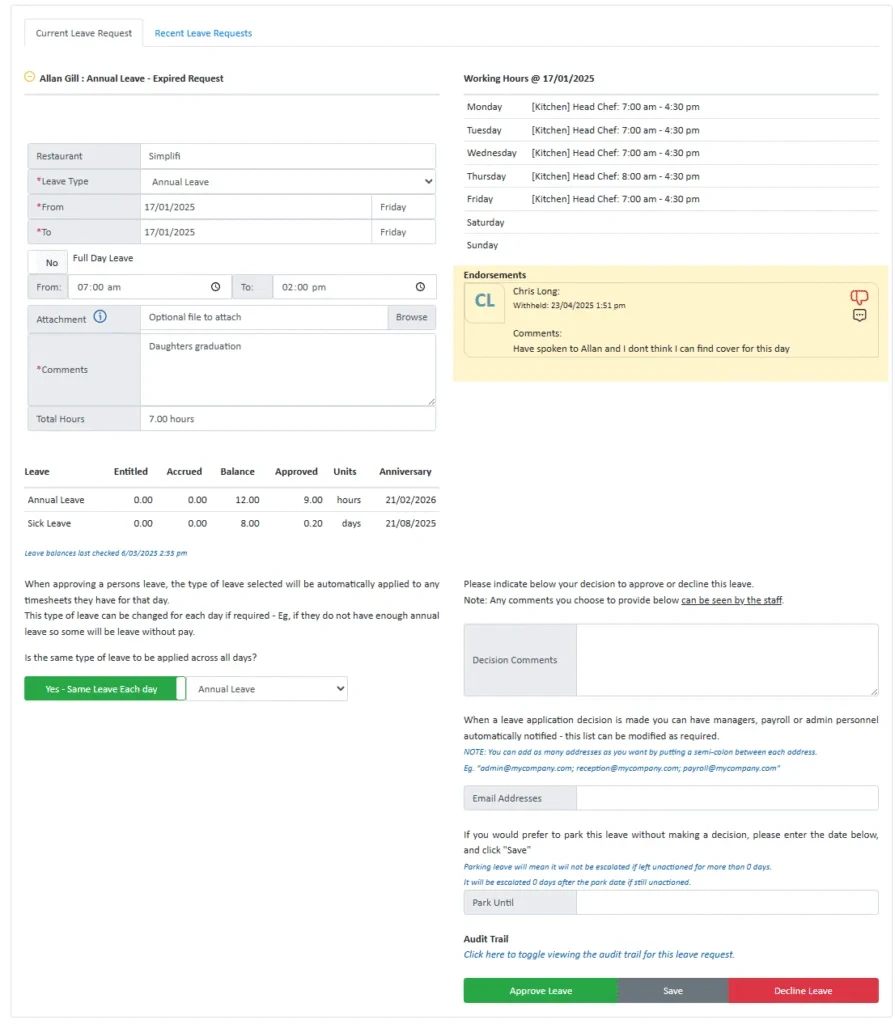
This update supports a more structured approval workflow where required, offering greater visibility and control while keeping the final decision-making authority with your designated approver.
Shift Swap Endorsement
Previously, shift swaps in Simplifi were submitted by one staff member and sent directly to a manager for approval. It was assumed the staff member had already spoken to their colleague and obtained agreement to swap shifts before submitting the request.
With this update, you now have the option for the system to formally request endorsement from the second staff member involved in the swap. This feature must be configured by Simplifi, so please contact us if you’d like to enable it for your organisation.
Once activated, the second staff member will receive a notification via the app, alerting them to the shift swap request. They can also locate pending requests by selecting Shift Swaps from the Menu. From there, they have the option to leave a comment and either Agree or Decline the swap.
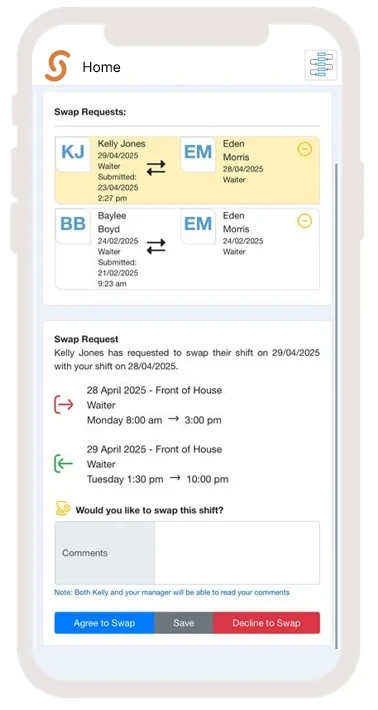
When reviewing the request, the approving manager will be able to see whether the swap has been endorsed by the second staff member, along with any comments left during endorsement. The manager can then choose to Approve or Decline the request as usual.

Please note: The system does not require endorsement in order for the manager to approve a shift swap. Whether endorsement is required as part of your approval process is entirely up to your internal policies.
Copy Timesheet Function
We’ve introduced a new Copy Timesheet function to streamline roster planning and reduce repetitive data entry.
This feature must be configured by Simplifi, so please get in touch with us if you’d like it enabled for your organisation.
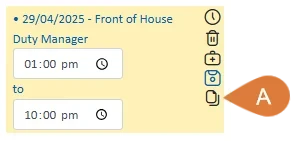
Once activated, you’ll see a copy icon appear when selecting a shift within the Rostering Module.
This allows you to copy the timesheet entry for a staff member to any other day of the week, up to the specified end date.
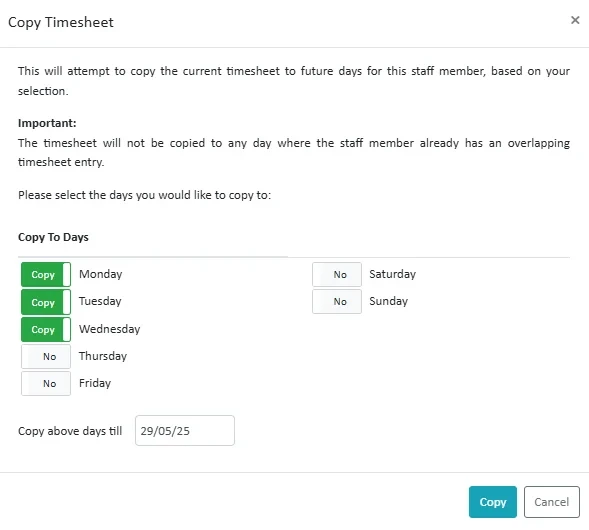
Important:
The timesheet will only be copied to dates after the original shift date (i.e. future dates only).
The system will not copy the timesheet to any day where the staff member is already rostered or has an overlapping timesheet entry, ensuring no scheduling conflicts are created.
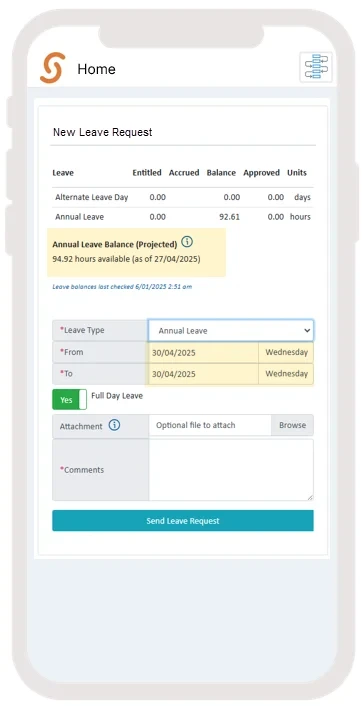
Projected Leave Balance – Now Available to Staff
As part of the March release, Simplifi introduced the ability to display projected annual leave balances. This was previously only visible to managers during the leave approval process.
If you would like these projections to also be visible to staff members when applying for leave, please contact Simplifi to enable this setting.
When a staff member selects a leave date within a future pay period, a projected leave balance will appear on the application screen.
Modify Staff Details – Opens in New Tab
When selecting the "Modify Staff Details" button from either the Timesheets or Payroll module, the staff member’s profile will now open in a new browser tab. This allows you to make any necessary changes without losing your place in the original module.
Once you’ve completed the modifications, you can simply return to the previous tab to continue approving timesheets or processing payroll as needed.

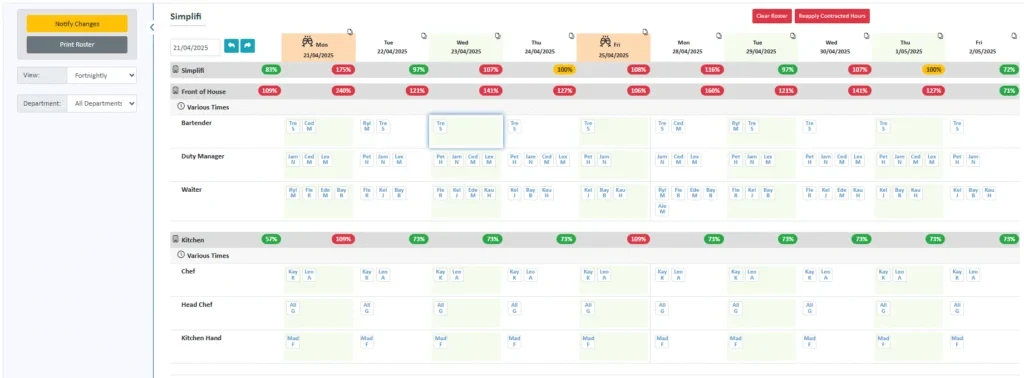
New Roster View – Fortnightly
A new Fortnightly Roster View is now available, allowing you to view and plan rosters across a two-week period.
To make the most of the screen layout, you may find it helpful to adjust your browser zoom settings for an optimal fit.
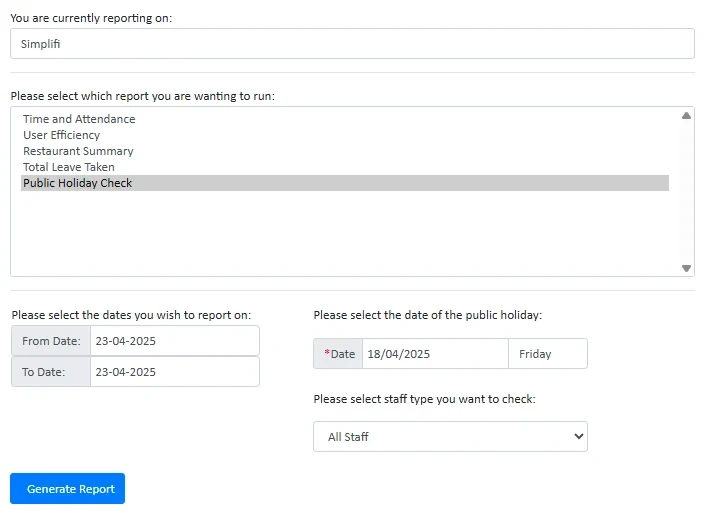
Enhanced Public Holiday Check Report
The Public Holiday Check Report has been improved to provide more accurate and useful information.
- You are now required to enter the date of the public holiday, and the day of the week it falls on will be automatically determined by the system.
- If there are contracted shifts or rostered shifts on the chosen date, these are now included in the report output.
Bug Fixes
The following software bugs will be resolved as part of this release. The items listed below are the titles of the related jobs. If you would like more detail on any of these fixes, please refer to your organisation’s Monday.com board or contact us directly.
- One click breaks dont appear on entry to Rostering Module
- Unpaid leave not creating leave request by modification
- Easter Sunday hours not showing on leave requests
- Invalid date error for leave request
- Upoad Staff Profile Pic
- InfoCare removal not generated when Contracted Hours set to Not Working
- Creating new Shift and immediately altering it throws an error
- Shift swap details screen - app issues
- Missing text in user privileges
- ShiftRosters not being updated when new shift created
- Schedule View navigation arrows only working on days view
- Null object on Find Replacement Screen
- "Record as Leave" option showing for orgs without Leave
- Apple Ipad - Pop Ups Blocked not allowing for Single Sign On
- Copy Roster appearing on Daily View for first load
- Get Null Object error sometimes when create default break
- New "Total Leave Taken" Report
- Relievers can't see other kindergartens under "Add New Kindergarten"