
How to Assign a Casual with Alternative Responses
Besides applying and declining a job, casuals can also apply with an alternative response. This means if you choose to assign them you will need to change the timesheets accordingly.
Example: You have published a job for Monday - Friday but the casual has responded saying they can't work Tuesday.
You will need to assign the casual to the job, delete Tuesdays timesheet and then publish a separate job just for Tuesday to find another casual to fill that day.

- Click on the clock on the top right hand side
- Click View Job
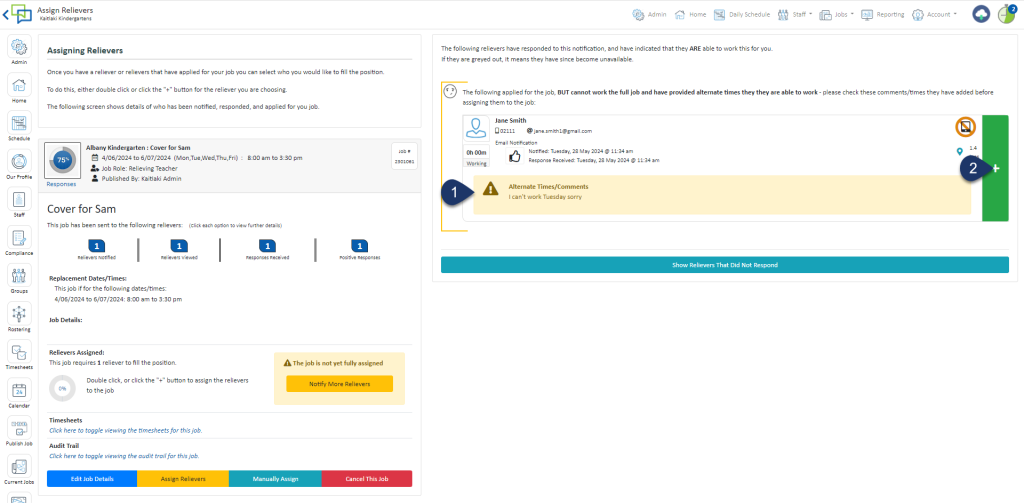
- Read the alternative Response
- Select the Green + to assign the reliever
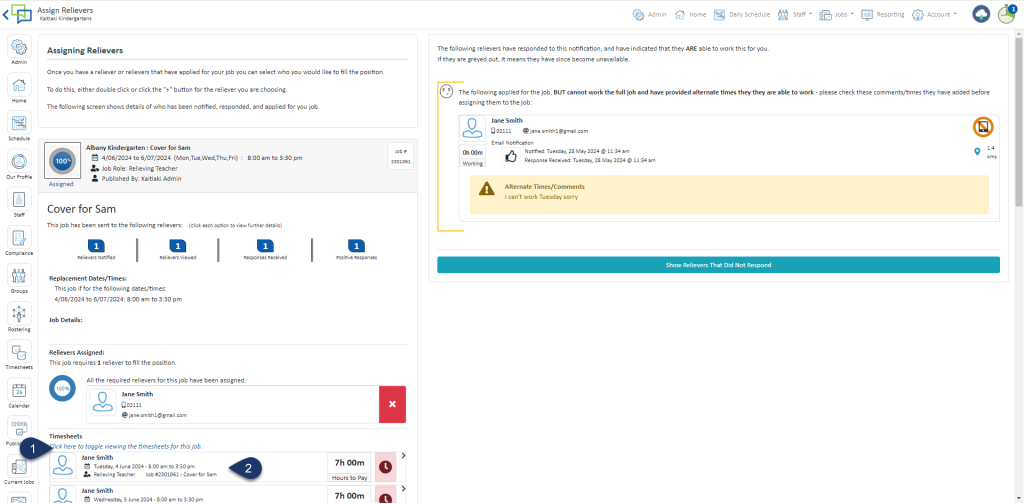
- Expand the Timesheets to see all the timesheet for the job
- Click on the timesheet you wish to amend or delete

If the Casual requested to start or finish early
- Alter the start and finish time
- Select Save
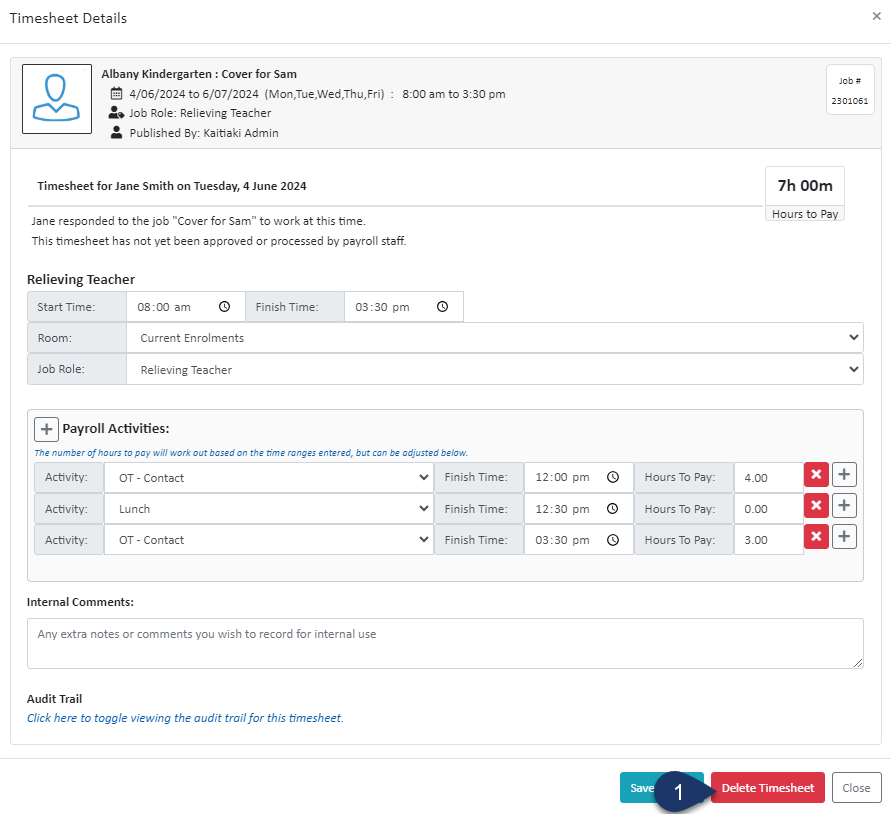
If the Casual requested to not work a certain day - like this example
1. Select Delete Timesheet
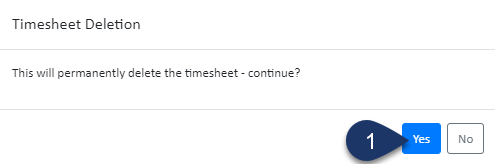
- Select Yes to delete that timesheet