
How to Change Contracted Hours
Example: This employee works Wednesdays from 8:00 am to 5:30 pm, but starting from the 1st of October 2023, will be working from 9:00 am to 6:30 pm.
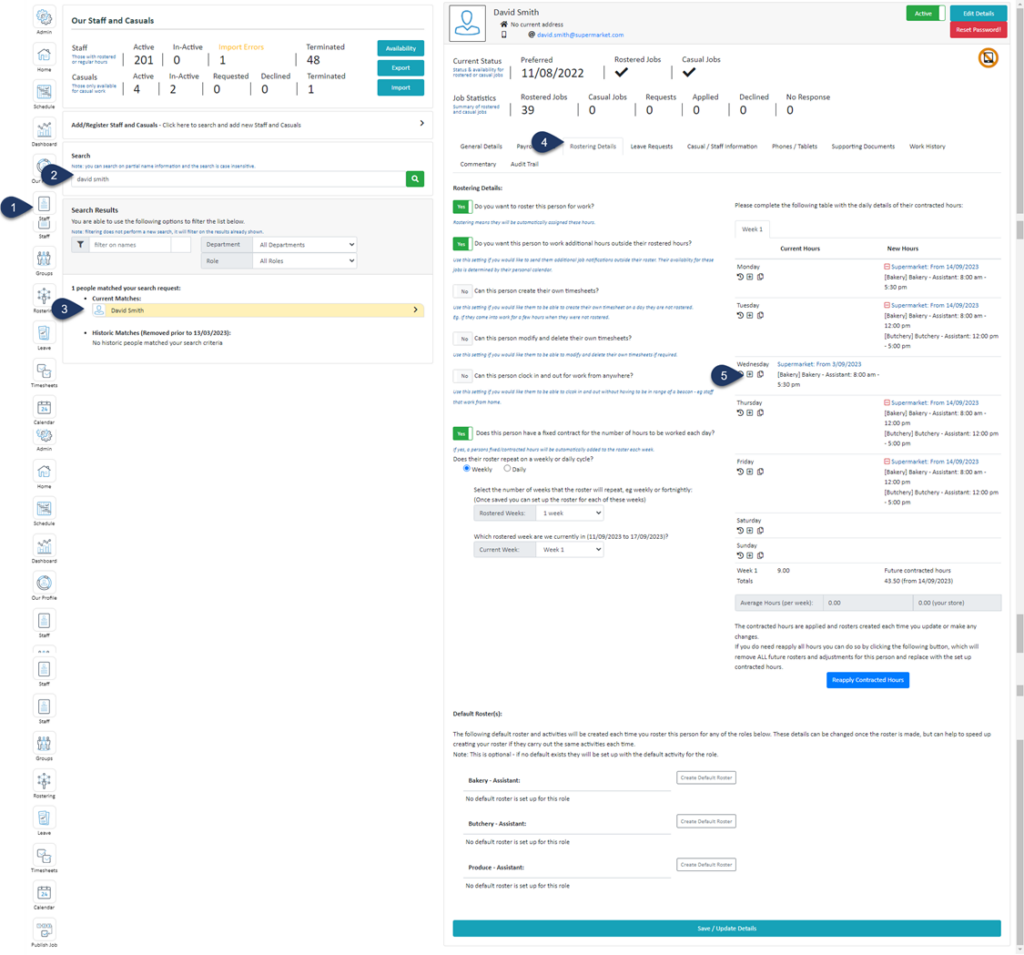
- Select Staff
- Search for the employee
- Select the Employee
- Select Rostering Details
- Click the + button next to the day you wish to remove hours from
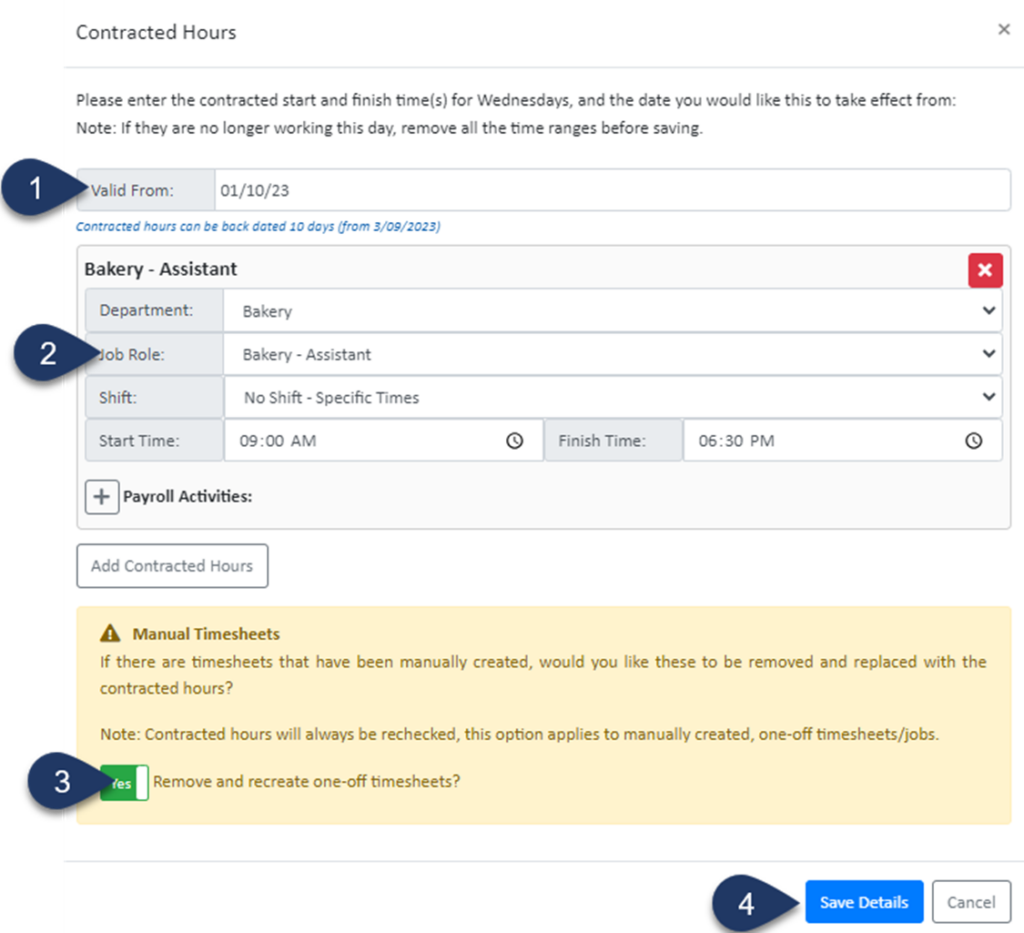
- Select the date you wish to remove these hours from
- Make the changes to the contracted hours
- Switch the toggle to YES to remove any previously created timesheets for this staff member and update any generated rosters
- Select Save Details
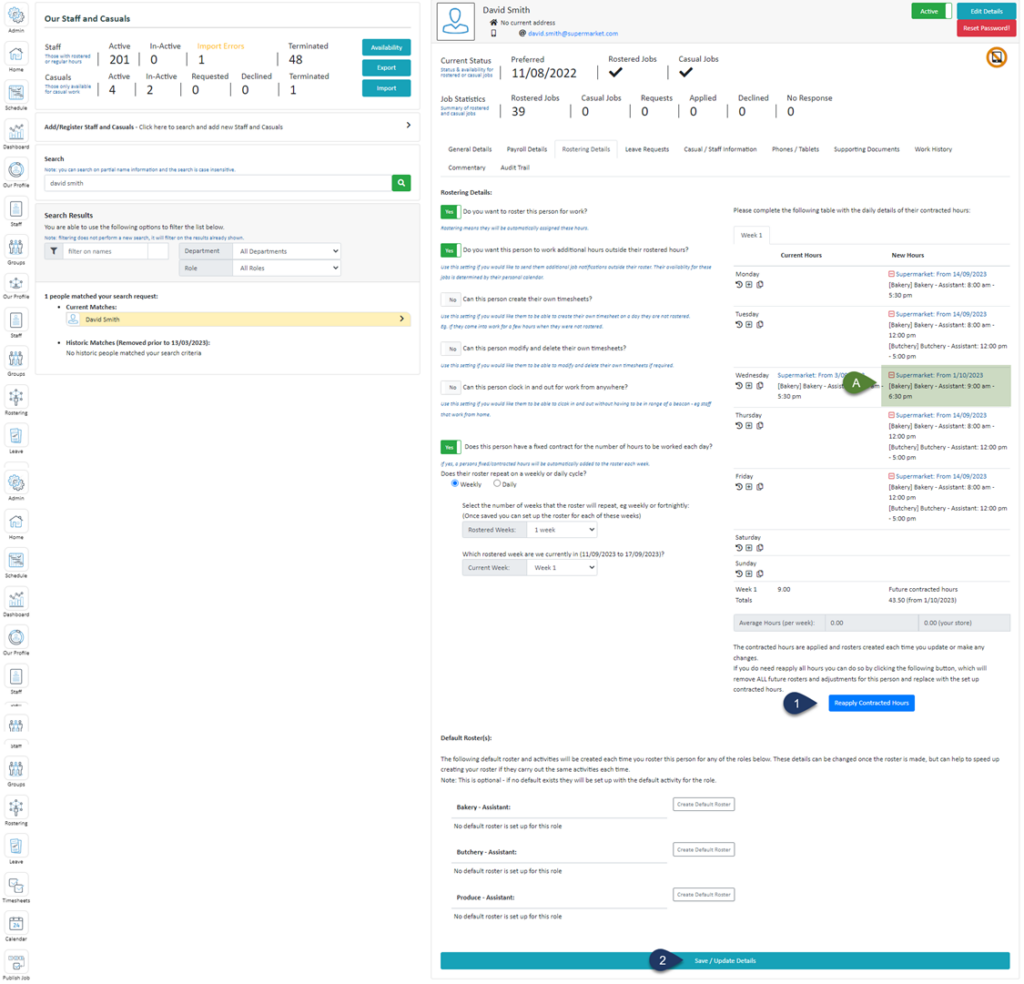
- Select Reapply Contracted Hours
- Select Save / Update Details
A. Here you will see this employee's 'New Hours' are 9:00 am - 6:00 pm from 01/10/2023