
How to Reset an Employee's Password
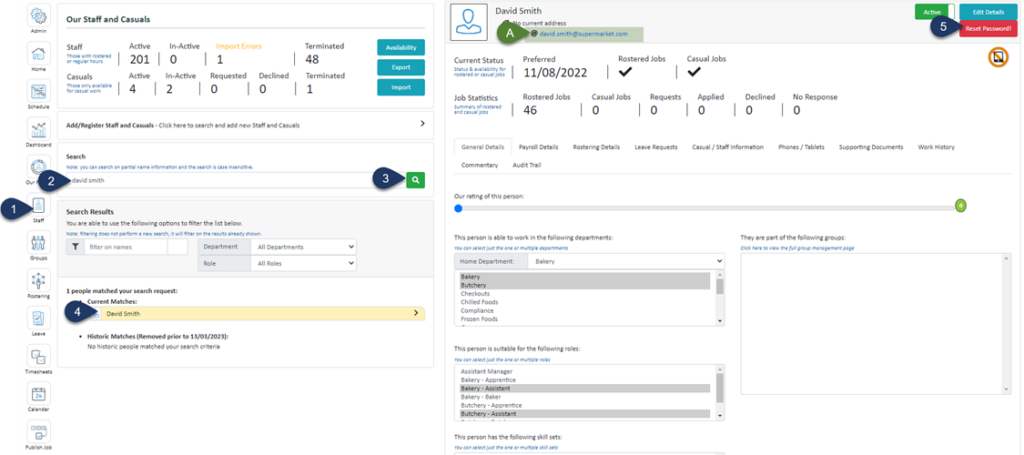
- Click Staff (If you can not see this 'Staff' button, you will need to ask your store administrator to grant you access)
- Type in the name or partial name of the employee
- Click the Search Icon
- Select the Employee
- Select Reset Password
A. Please note that you are only able to reset password for employees who use a personal email address that is not associated with the company single sign-on
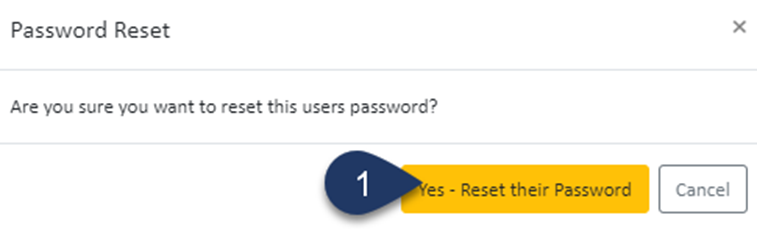
- Select - Yes - Reset their Password
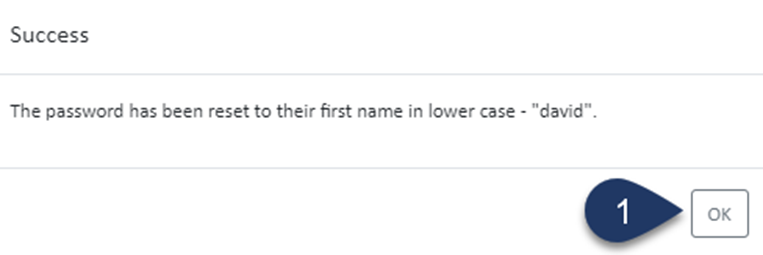
- Select OK
The password will be reset the employee's first name in lowercase