
Messaging System
A new messaging feature has been added to make communication easier within your organisation and with your relievers.
You'll now see a messaging icon on the left-hand side of the screen.

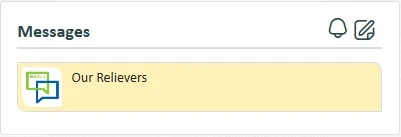
A new group chat called "Our Relievers" has also been created by default. This allows you to send updates or important messages to your active relievers at once.
To create a new chat group:
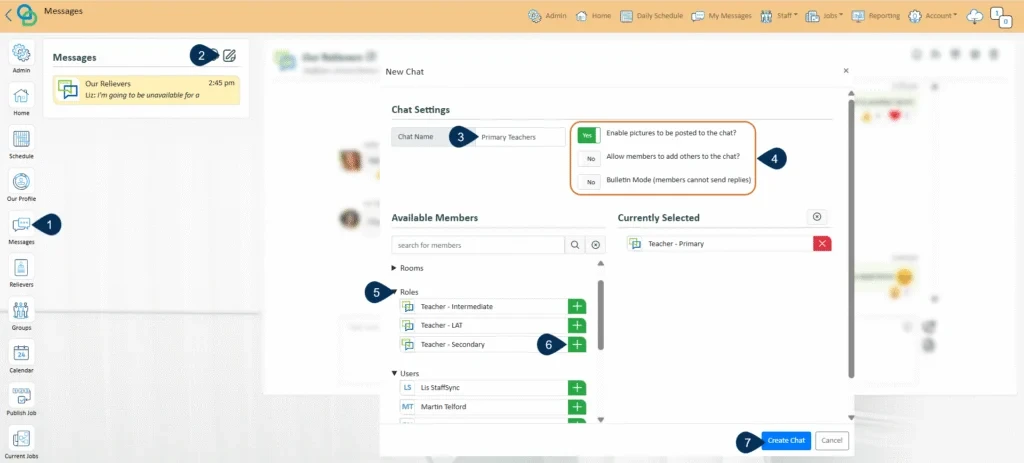
- Go to the Messages.
- Click the paper and pen icon to start a new chat.
- Enter a name for your group chat.
- Set any permissions you want (e.g. allow replies, allow photo sharing, etc.).
- Expand the user list to find groups or members you want to add.
- Click the green plus (+) icon next to each group or person’s name to add them.
- Click "Create Chat" to save and start your group.
You can create as many additional messaging groups as you like, For example, you might want to set up separate groups for different roles in your organisation.
Once a group is created, both you and your relievers will have access. Members can view your messages, post replies, and ask questions directly in the group.
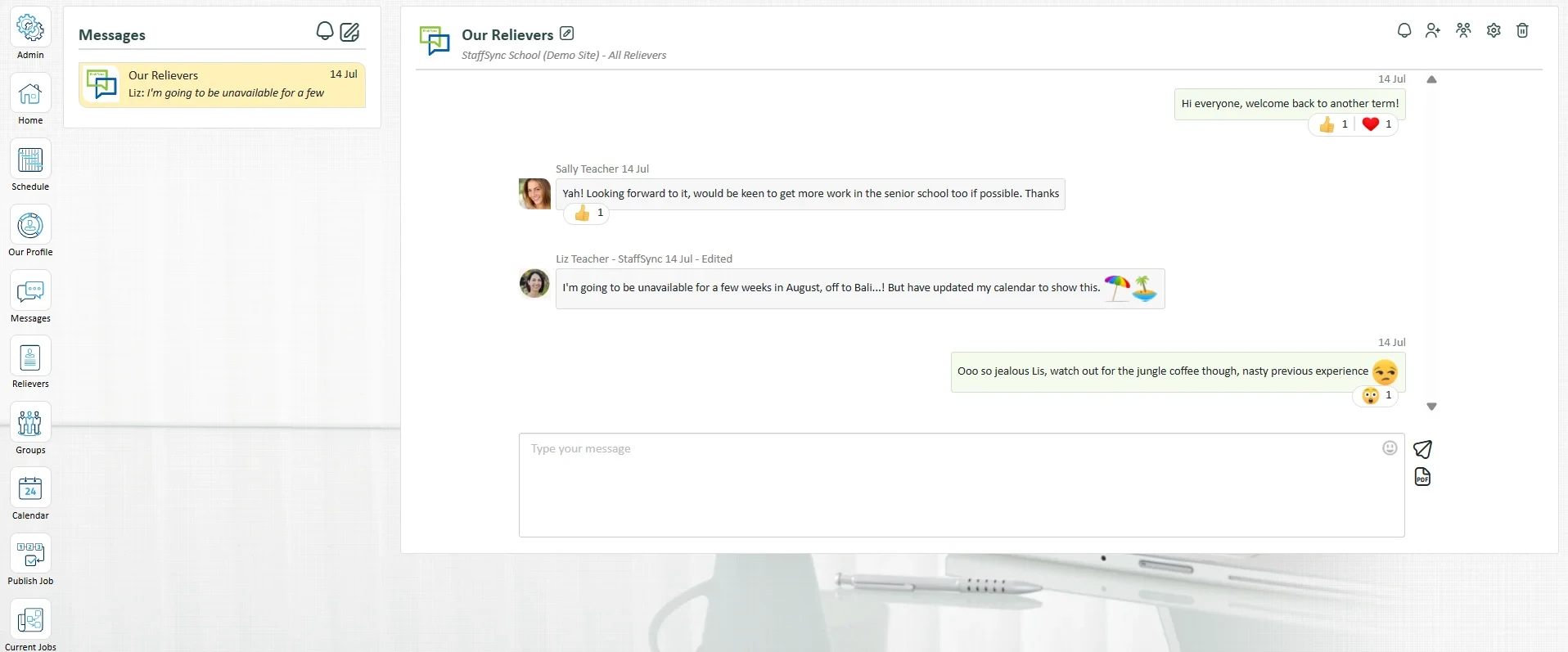
To adjust your chat settings, click the gear icon in the top-right corner of the chat window.

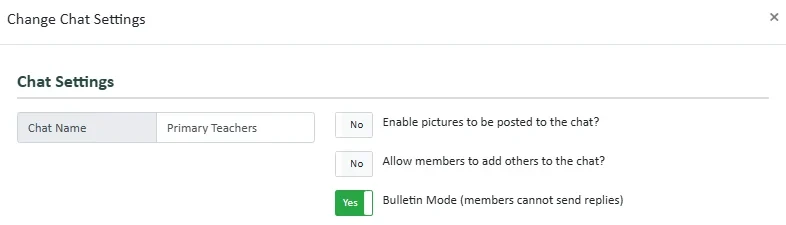
By default, messaging groups allow two-way communication. Staff and relievers can reply to your messages and have conversations within the group. However, if you'd prefer to use a group as a bulletin board (where only admins can post and others can’t reply), this setting can be adjusted under Group Settings.
Any new messages you haven't seen yet will be indicated by a number badge on the messaging icon on the left-hand side of the screen.