
Release Notes - March 2026
Tuesday, March 24 2026, at 10:15 PM.
Leave Module Enhancements
Significant updates have been made to the Leave Module, including improved visibility of leave information across the system.
Automatic Leave Request Management
Automatic leave requests created from manually added timesheet leave are now managed more reliably. When manually added leave is removed from a timesheet, the corresponding automatic leave request will now be removed, ensuring the Leave Module accurately reflects the leave present on timesheets.
These changes improve transparency, ensure better alignment between timesheets and leave requests, and support organisations with more complex leave requirements.
Improved Leave Visibility
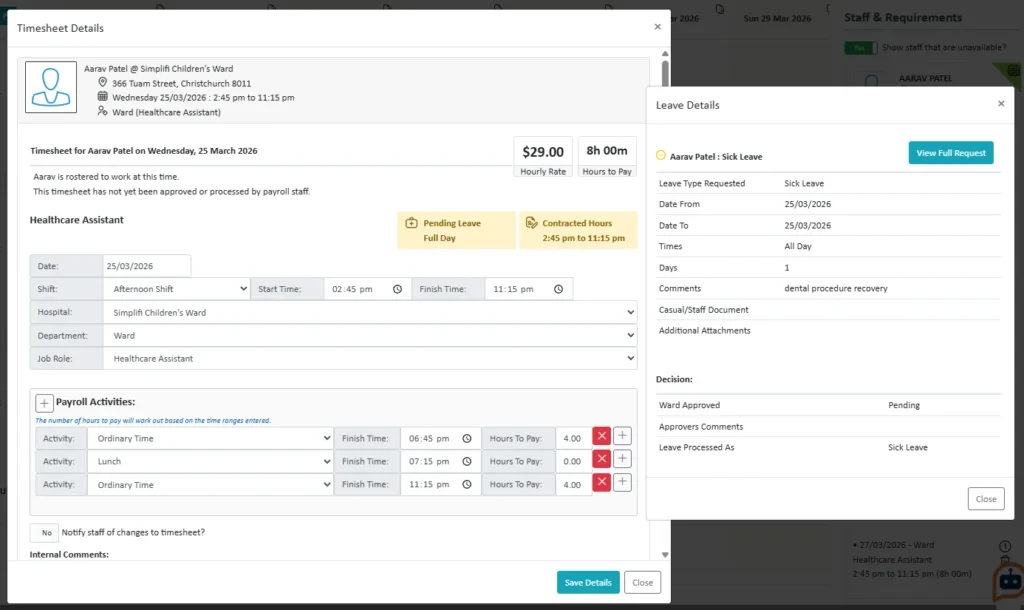
Additional information is now displayed across the system to help users understand leave activity linked to a timesheet:
- Alert boxes in the timesheet modification view show approved or pending leave associated with the timesheet.
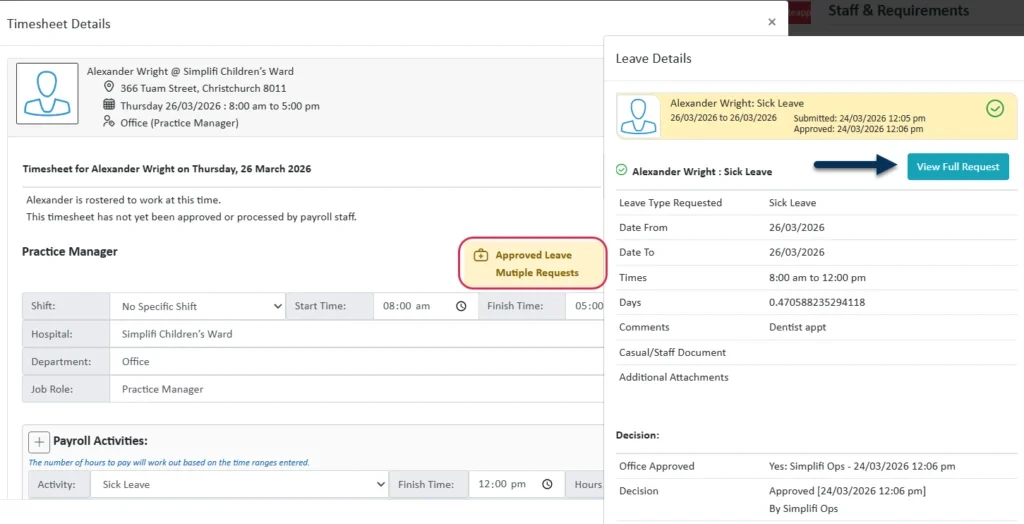
- If multiple leave requests exist, users can open a summary view to review each request and navigate to the full leave request if needed.
- Alerts also indicate whether leave was requested by a user, automatically generated, or created due to a public holiday or closedown period.
Leave Filtering and Visibility
Updates have been made to improve visibility and filtering of leave requests:
- The Leave Summary now displays both Dates and Hours, allowing users to quickly see the requested leave as well as the actual leave units being taken.
- A View Full Request button has been added to the Leave Summary, opening the full leave request in a new tab for users with the appropriate permissions.
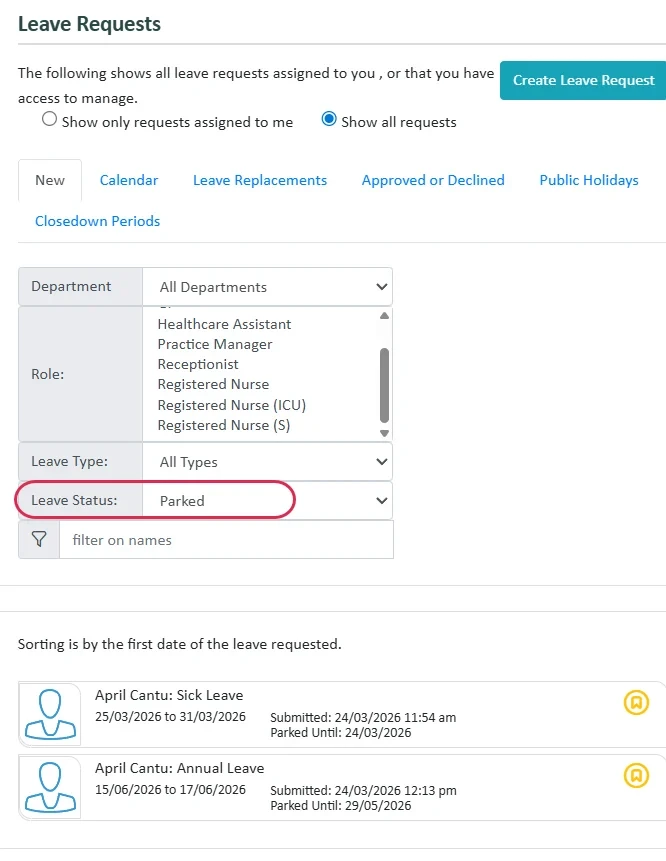
- A Leave Status filter has been added to the Leave Module to help refine results. The available options change depending on the tab selected:
- Leave Type, Leave Status filters are now also available in the Staff Module to make leave easier to navigate from this view.
Leave Request Approval Enhancements
We have introduced an improvement to the leave approval process that provides greater flexibility when reviewing multi-day leave requests.
During or after approval, managers can now remove individual days from a leave request without needing to cancel or modify the entire request.
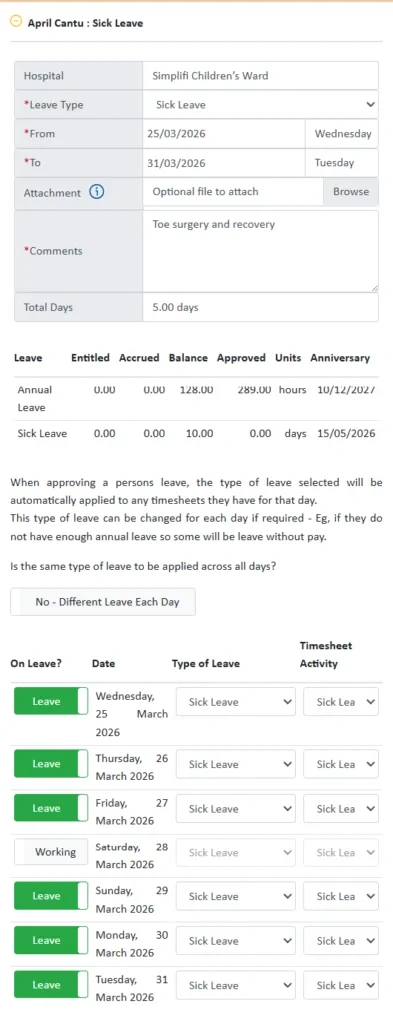
Previously, approvers could only select the leave type and activity for each day. A new toggle option has now been added for each day within the leave period, allowing the approver to choose whether that day should be included in the leave processing.
By default, all days in the request are set to “Leave.”
Approvers can change any day to “Working” to exclude it from leave processing.
Individual days within a leave period can now be easily removed, even after approval.
If the related timesheet has already been processed, an amendment will be created.
No need to cancel the entire leave request, reducing the risk of cancelling any published replacement jobs.
Managing Replacement Jobs When Declining Approved Leave
A new popup has been introduced when declining previously approved leave where replacement jobs exist.
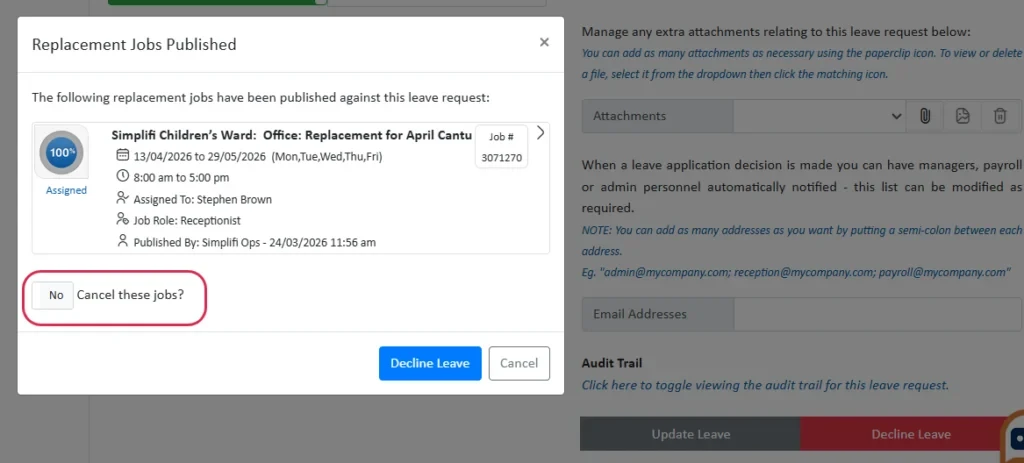
The popup displays details of any associated replacement jobs and provides options for managing them:
- Users can click on a job tile to open the full job details in a new tab, allowing manual changes if required.
- A new toggle “Cancel these jobs?” allows users to cancel all associated replacement jobs.
- Jobs that have already been worked will not be cancelled.
If replacement jobs were published against leave that was created through direct modification of the timesheet, and the leave activities are later removed, those jobs will no longer be automatically cancelled, even though the leave request itself is deleted.
Multiple Leave Requests per Timesheet
Timesheets can now reference multiple leave requests. This allows different leave types to be recorded on the same day (for example, part-day Annual Leave and part-day Leave Without Pay). When multiple leave activities are added manually to a timesheet, separate automatic leave requests will be generated for each leave type. You can click to expand/view details and navigate to the Leave Request.
Parked Leave Requests
Enhancements have been made to improve how Parked Leave Requests behave and to better reflect the intended purpose of the feature.
When the Parked Date is reached, the leave request will automatically move from “Parked” to “Pending.” From this point, the request will follow the normal approval process, including standard escalation rules.
The Parked feature is intended to act as a “review later” option, allowing managers to defer dealing with a request until a specified date. Once that date arrives, the request will now automatically return to the normal workflow.
Escalation notifications will occur as expected once the request becomes Pending.
Replacement Job Alerts
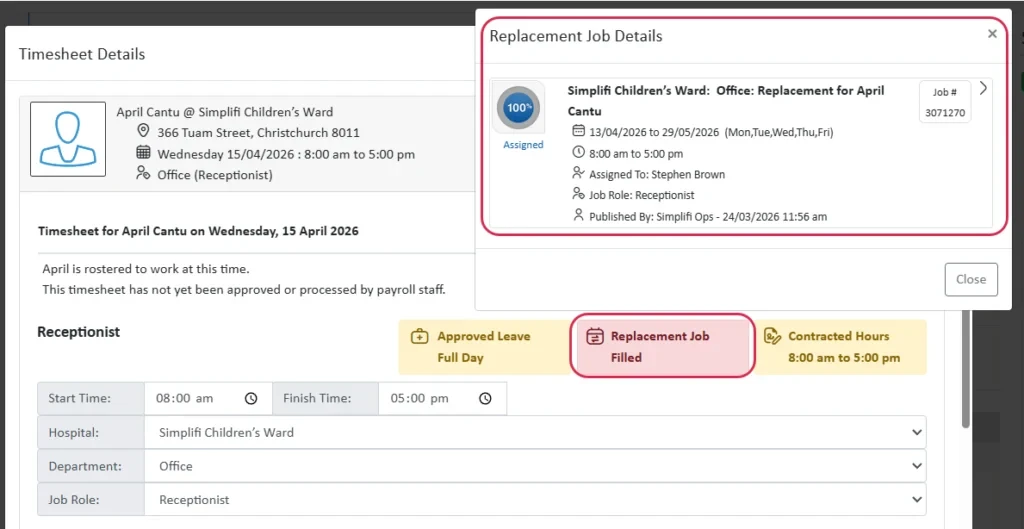
When replacement jobs exist for leave:
- An information alert will appear on the timesheet indicating that replacement jobs have been published.
- Users can open a summary of the jobs and navigate directly to the edit job screen if changes are required.
- If a replacement job has already been filled, the alert will display in red to highlight that changes to leave times may impact confirmed coverage.
Timesheet and Payroll Module Updates
Leave information is now also visible within the Timesheet and Payroll modules, showing tiles for approved leave (or pending leave where applicable). Users can view a summary of all leave requests associated with the timesheet.
Upcoming Leave Report
A new report has been introduced to provide visibility of all approved leave scheduled for future dates.
Roster View Enhancement – Staff and Contracted Hours Views
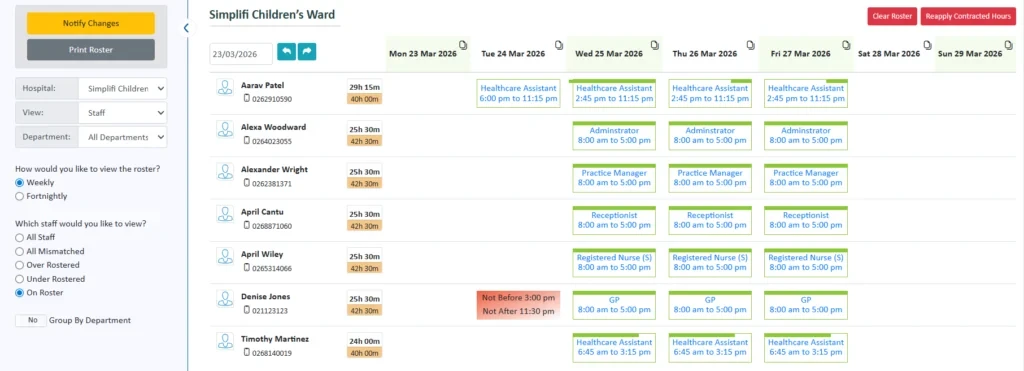
A new “Group by Department/Room” toggle has been added to both the Staff and Contracted Hours views to give users more flexibility when viewing roster information.
- When Group by Department is enabled, staff will continue to display as they currently do, grouped by room/department.
- When Group by Room is disabled, the room/department groupings are removed and all staff are displayed in a single list.
In this view, each staff member will appear only once in the roster, with their row displaying all associated timesheets and hours across departments.
The Group by Room toggle will only appear when “All Departments” is selected in the filter, as it is not relevant when viewing a single department.
Staff are now listed alphabetically by first name (instead of surname) for consistency across the system.
Weekly Roster Print Option
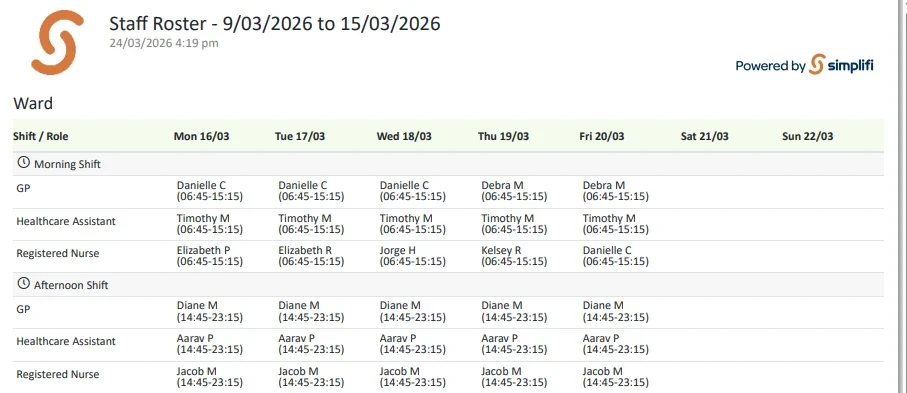
A new Weekly Print Roster option has been introduced and is now set as the default when printing from the rostering screen.
Bug Fixes
The following software bugs will be resolved as part of this release. The items listed below are the titles of the related jobs. If you would like more detail on any of these fixes, please refer to your organisation’s Monday.com board or contact us directly.
- Amendment Timesheets not generating if changing from Working to Holiday on Public Holiday
- Closedown Period settings change
- Compliance not checking for conditions on follow up questions
- Contracted Hours history view doesnt show start/finish times
- Contracted Hours weekly roster creation job - shifts
- Copy timesheet to another date using wrong orgtempstaff
- Datapay Clients can't access Payroll Settings without an active API
- Default break creation including archived timesheets for b2b shifts
- Default organisation shift times ovemiding actual shift times
- Don't allow resorting of Answer Options for Type Ahead Q's
- JAS - Restores page name
- Job queue "overdue"
- Logon issues with new Parent Domain structure
- Messaging throwing errors if Managers not set
- Mondayised Public Holiday issues
- Notifications not being sent for changes to roster
- Only create a leave modification audit when the timesheet has actually changed
- Partial leave request error when creating on behalf
- Prevent publishing replacement jobs on public holidays
- Questions answered by API sync populating wrong dicts
- Record as Leave Timeout Error
- Room names - strip blanks
- Shifts not showing on timesheets if staff managed at HO
- Standby timesheets being counted as back-to-back shifts
- Unable to approve back-to-back part-day leave
- Unable to re-order field options immediately after entry
- Unable to save Leave Request after changing Leave Types
- Unpaid Activities not updating for Part-day leave