
How to Set Up Contracted Hours with Multiple Shifts
Example: This employee has a permanent roster where they work in the bakery as a bakery assistant from 8:00 am to 12:00 pm, and then in the butchery as a butchery assistant from 12:00 pm to 5:00 pm.
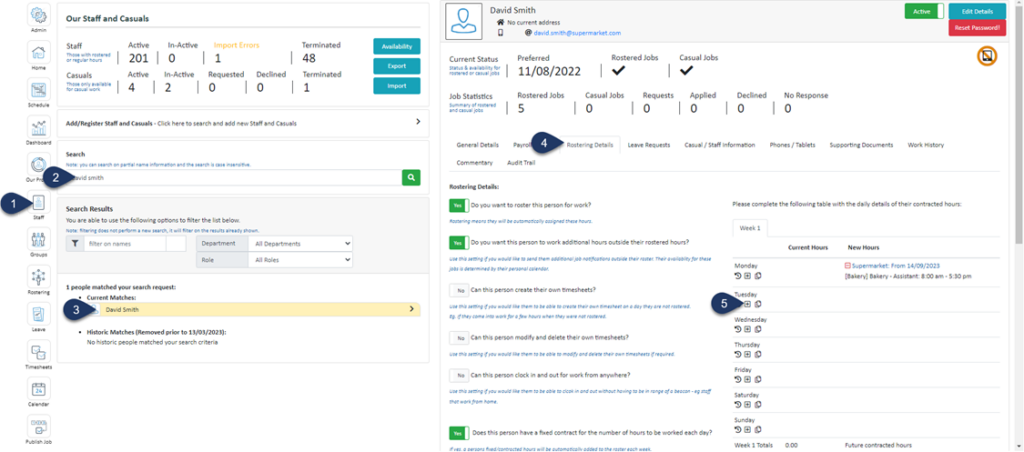
- Select Staff
- Search the name of the employee
- Select the Employee
- Select Rostering Details
- Select the + button next to the day you wish to add contracted hours to
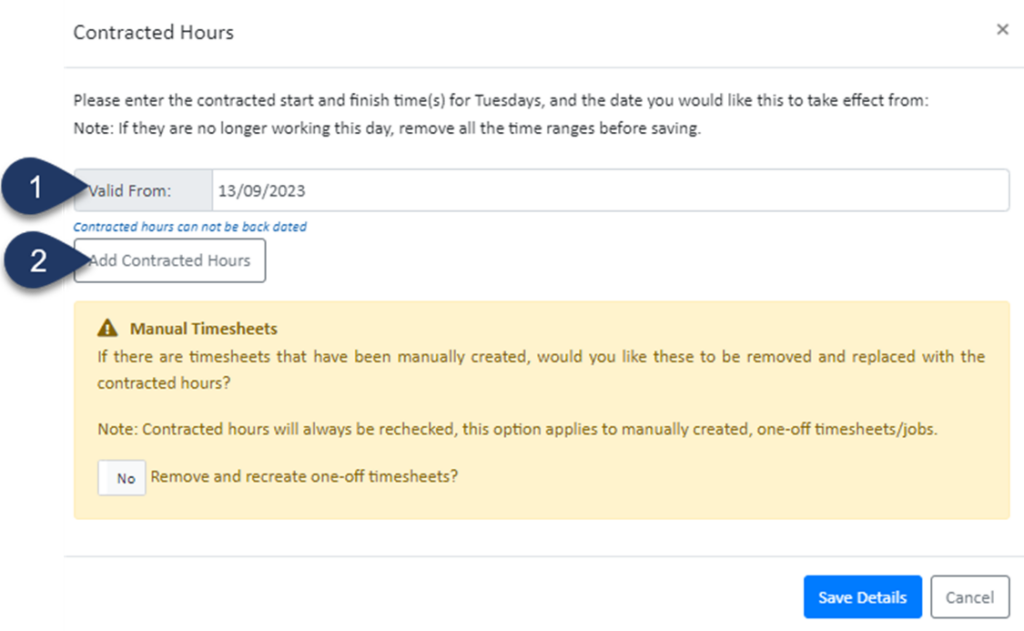
- Select the date these hours are valid from
- Select Add Contracted Hours
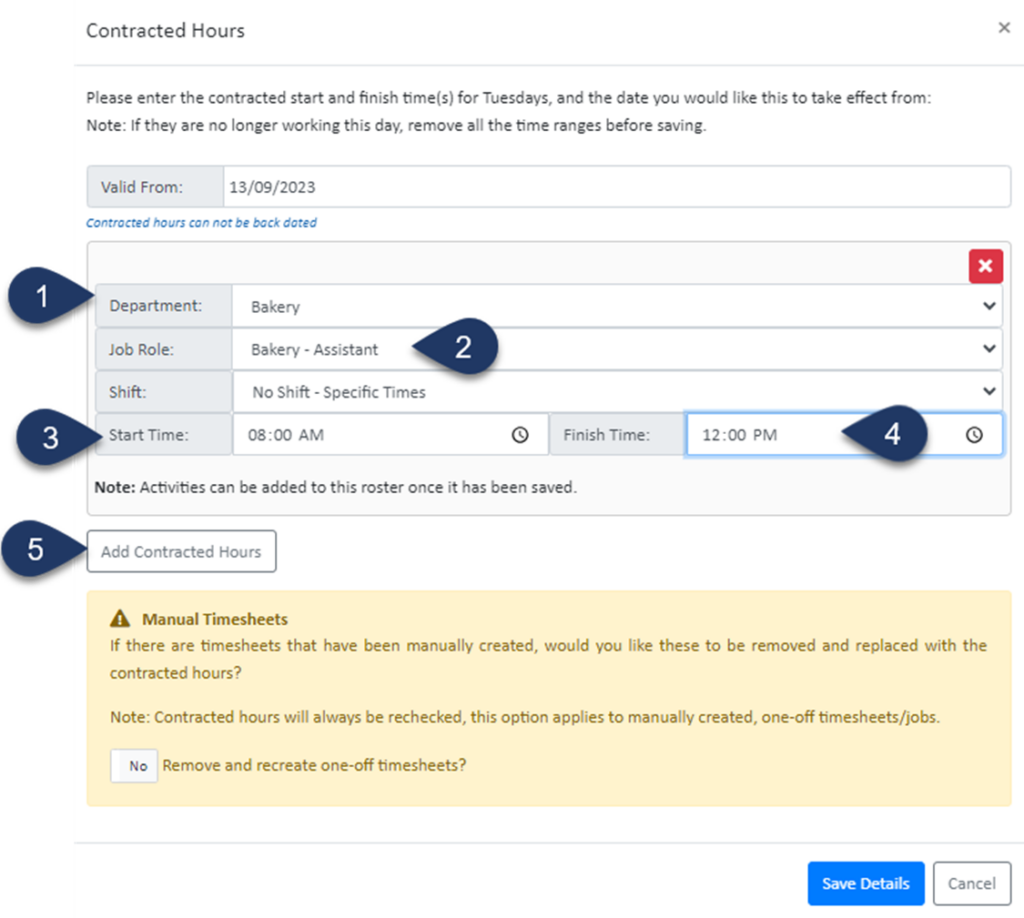
- Select the Department
- Select the Job Role
- Enter the Start time of the first shift
- Enter the End time of the first shift
- Select Add Contracted Hours to add the next shift
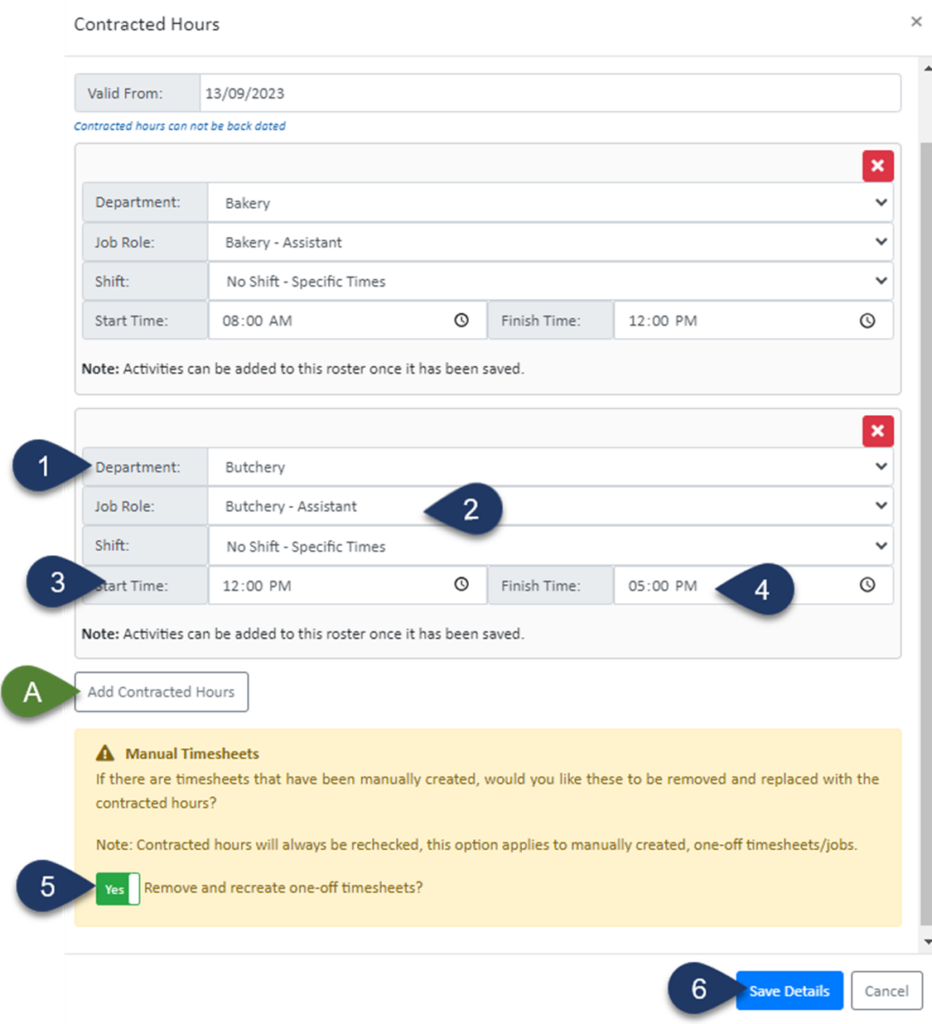
- Select the Department
- Select the Job Role
- Enter the Start time of the second shift
- Enter the End time of the second shift
- Switch the toggle to 'YES' to remove any previously created timesheets for this staff member and update any generated rosters
- Select Save Details
A. If you wish to add a third shift, click 'Add Contracted Hours' again and enter the details of the third shift
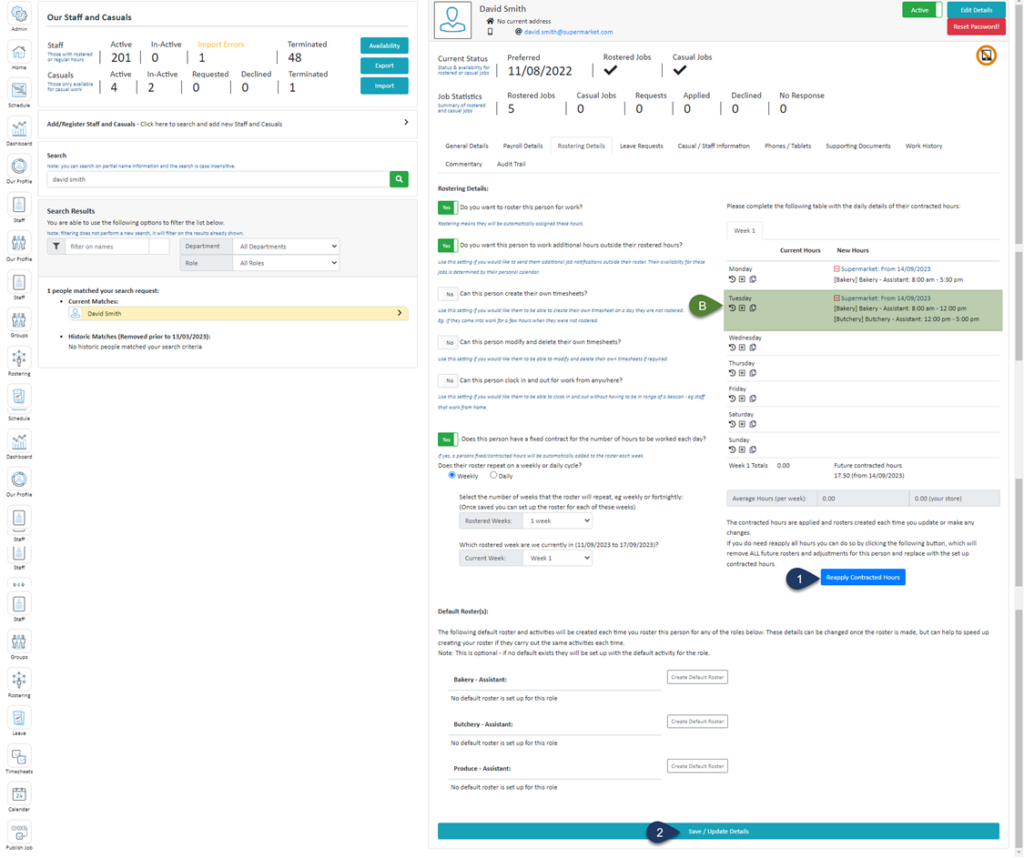
- Click Reapply Contracted Hours
- Select Save/Update Details
B. The contracted hours you have added should appear here under the 'New Hours' Column