Payroll Processing Method - CSV File
This will vary from company to company so please use this guide with discretion
1. Check Timesheets without 'Manager Approval'
- Select Hours Pending Approval Only
- Make sure all filters here have been switched to YES
- Select All Dates
These are timesheets that have not been approved by the manager. You can either bring this to the manager's attention or review and approve them yourself.
2. Check and Approve Timesheets that need attention
- Check for Approved Hours ONLY.
- Look for amended timesheets, flagged activities, entries created by the employee, and timesheets with comments. (Some payroll administrators may also check for hours that differ from the schedule.)
- Select All Dates
You can use the Name filter or the Date filter as needed, but the goal is to review and approve each timesheet individually.

3. Approve All 'Manager Approved' Timesheet
- Select Hours Approved only
- Keep all filters to a Yes
- Select All Dates
- Click Approve All Timesheet for Payroll

4. Process All Approved Timesheets (create CSV file)
- Please note that pending timesheets will not be included in the CSV file
- Select Process All Approved Timesheets
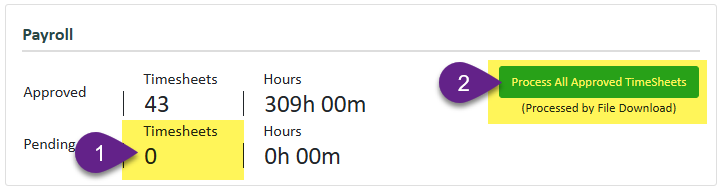

Click on the payroll module to refresh the page
If there is a number remaining in the Approved Timesheets this indicates timesheets have not been processed due to an error. For assistance in identifying and rectifying the error, please contact support@ghuwvsgnv3.wpdns.site
5. Export CSV File
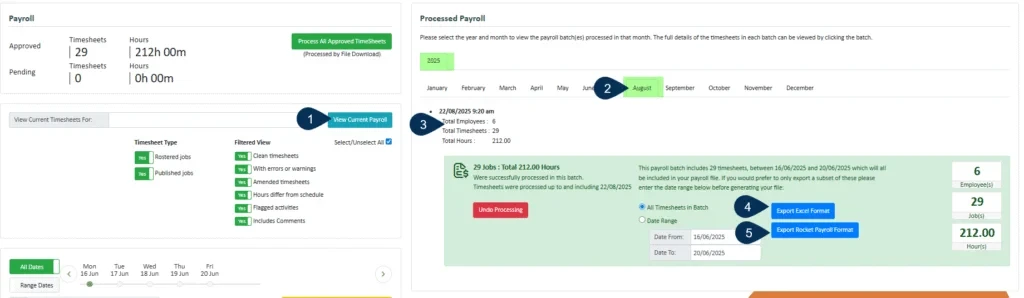
- Select View Processed Batches
- Choose the year and month
- Select the Pay period
- Click here to download the Excel file of the processed payroll
- Click here to download the CSV file
- Click on the timesheet to view the detail