
How to Add a Staff Member to the Roster
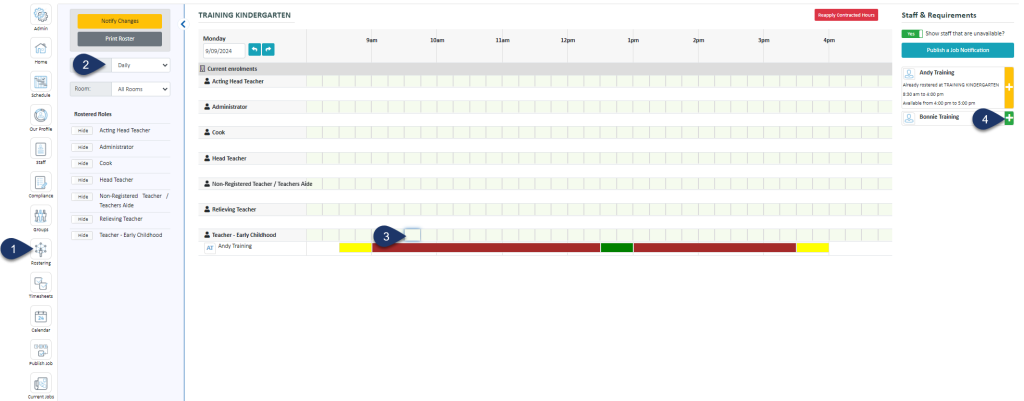
- Select Rostering
- Select the Daily View
- Choose the Start timeslot next to the role you wish to add
- Select the green plus next to the person you wish to add
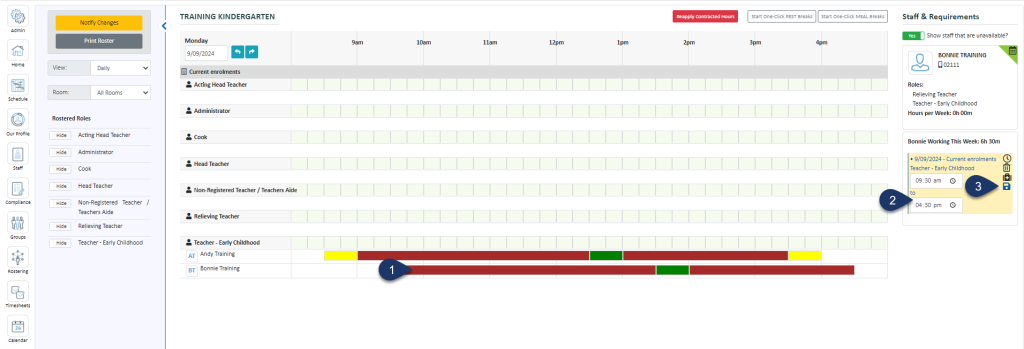
The shift is added from the start time you selected but to the end of the day
- Select the shift
- Enter the end time here
- Select Save
The shift is added with the default activity set for the role, with a lunch break if entitled. You may wish to add or change these timesheet activities. To do so
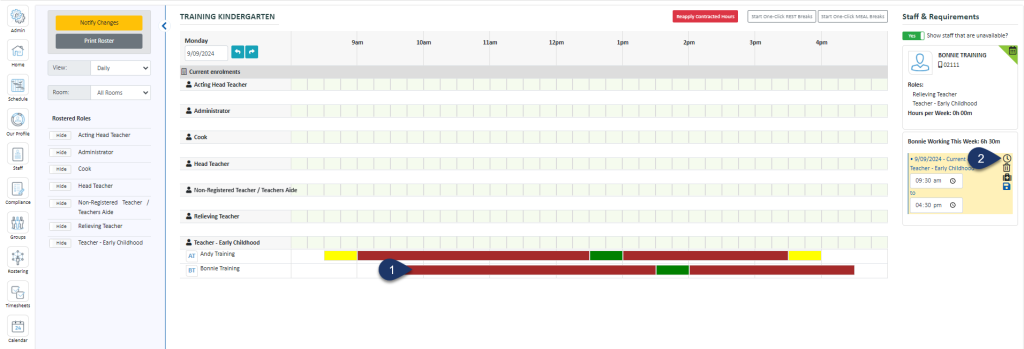
- Select the shift bar
- Select the clock icon to bring up the timesheet
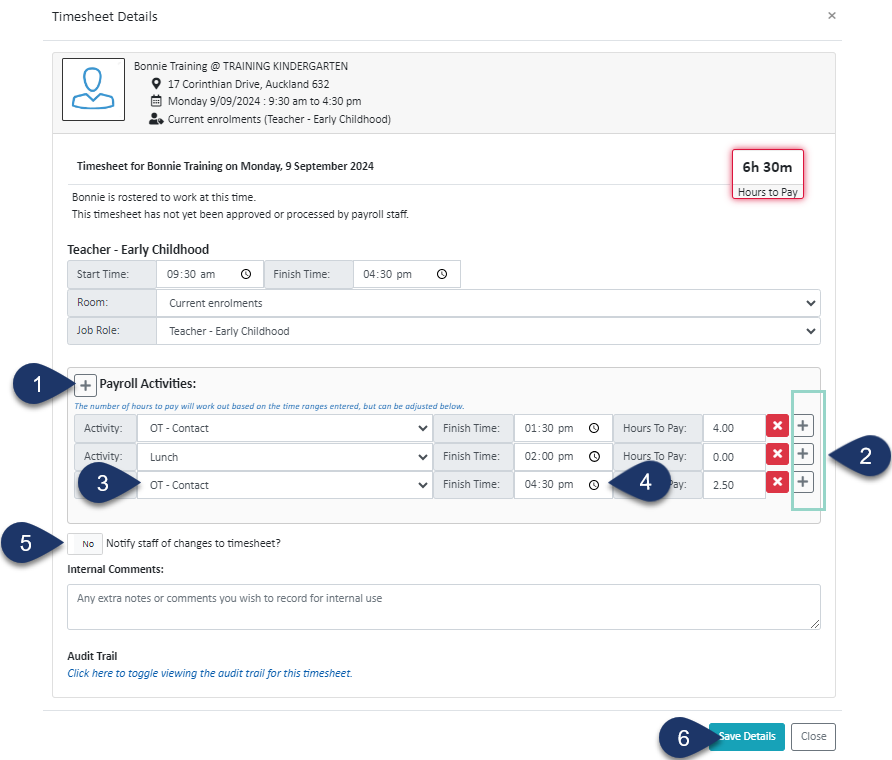
- Click this + button to add an activity to the top of the list
- Select one of these + buttons to add an activity directly below
- Choose from the list of activities
- Enter the finish time of this activity
- If you wish to notify the staff member of the change, switch this toggle to a yes
- Select Save Details.